Quick answer
Fix input lag from the outside in. Start with the TV or monitor: enable Game Mode, turn off motion smoothing, and use the AISLPC Handheld to TV HDMI Cable instead of a generic adapter. Then move to the handheld: lower demanding display and frame rate settings, keep the battery above roughly 20 percent, and test one change at a time so you know what actually helped.
Why the TV is usually the biggest lag source
When you dock an AISLPC handheld to a TV, monitor, or projector, the display often adds more delay than the console itself. Movie and sports picture presets apply motion smoothing, noise reduction, and dynamic contrast, all of which require the TV to buffer frames before showing them. Game Mode strips most of that processing out. If your TV has an auto low-latency mode, leave it on so the TV switches to Game Mode whenever the handheld is connected.
Refresh rate matching matters too. If the TV runs at 60Hz and the handheld outputs a different rate, the display may repeat or drop frames to compensate. Set the handheld output to match the TV's native refresh rate where the option exists, and avoid daisy-chaining through a soundbar, capture card, or AVR unless you have tested that the passthrough is not adding delay.
Cable and connection checks worth doing first
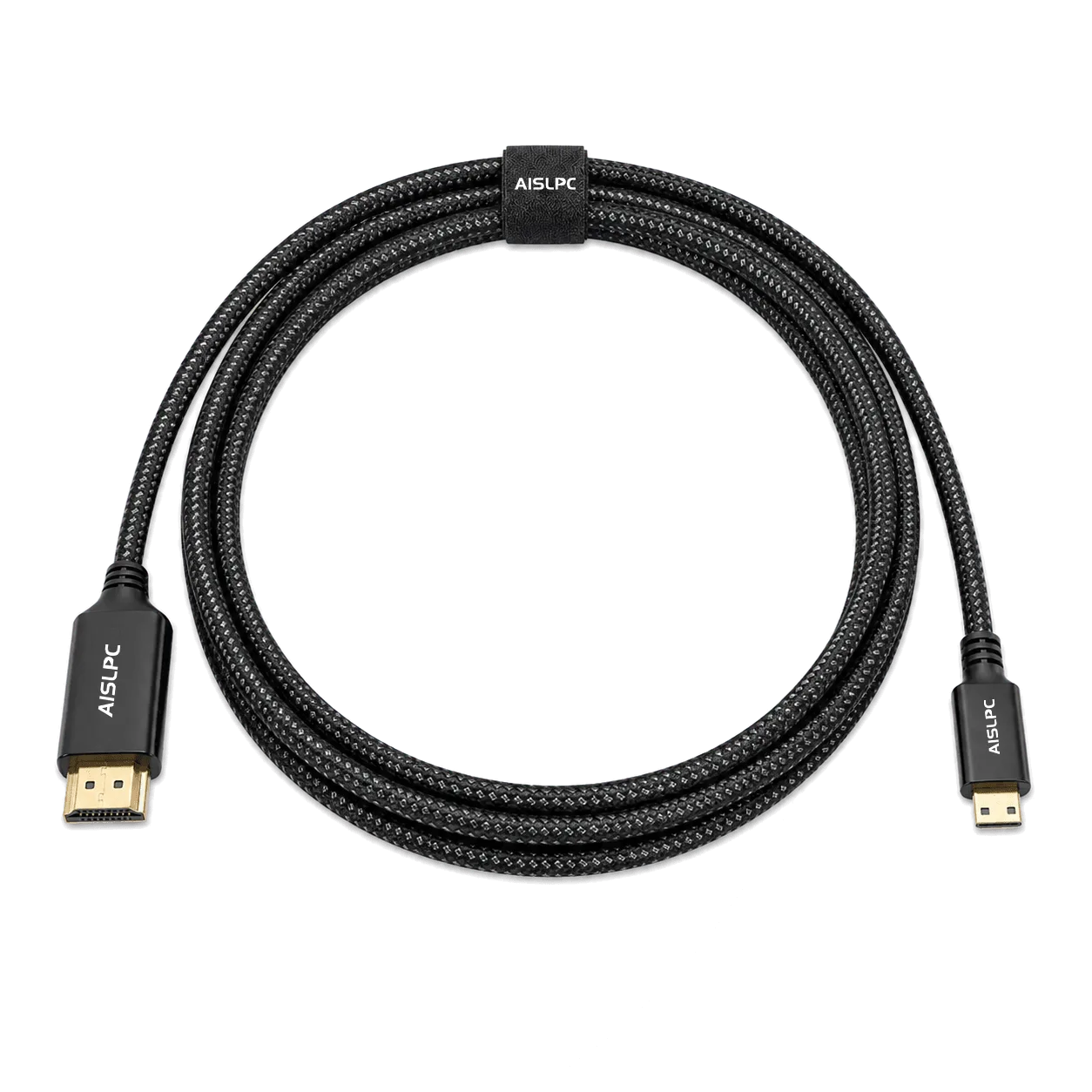
Not every USB-C to HDMI adapter passes a clean signal. Cheap adapters can negotiate a lower resolution or introduce their own conversion delay. The AISLPC Handheld to TV HDMI Cable is built for compatible AISLPC retro handhelds and uses a braided jacket for daily wear resistance, so it is the simplest known-good starting point when you are troubleshooting. If lag persists after switching to a direct cable, the problem is almost certainly in the display settings or the handheld, not the cable.
Keep the run short and direct. A long extension or a powered splitter adds another device in the chain, and each hop is a chance for the signal to be re-timed. If you must use a hub, test with and without it to confirm it is not the culprit.
Handheld display and frame rate settings that actually matter
On the handheld side, the highest-impact changes are the ones that reduce how much work the chip has to do per frame. Lowering the internal render resolution, disabling heavy shaders or filters, and turning off frame smoothing or interpolation all shorten the time between your button press and the visible result. Interpolation in particular can make motion look smoother while adding delay, which is the opposite of what you want for action games.
Frame pacing is separate from average frame rate. A steady 50 or 60 frames per second feels more responsive than a fluctuating 60 that dips to 40. If a demanding title stutters, cap the frame rate slightly below what the console can hold consistently rather than leaving it uncapped. On AISLPC handhelds with storage options, keeping the game library on internal storage rather than a slow card can also reduce load hitches that feel like lag.
Power state, thermals, and controller habits
A handheld running in a low-power or battery-saver state may throttle its processor to extend runtime, which shows up as sluggish response. Charge above roughly 20 percent and disable battery-saver profiles while gaming. Heat matters for the same reason: a console that has been running hard in a warm room can throttle, so give it airflow and take a short break if response degrades mid-session.
Finally, check the controller path. Bluetooth audio and wireless controllers share radio bandwidth, and a weak or crowded connection adds latency you cannot fix in settings. If you use a wireless controller, keep it close to the handheld and avoid stacking it next to a router or USB 3.0 device. Wired or direct controls will always be the most predictable option when you are chasing the last few milliseconds.
Step-by-step lag reduction order
- Step 1: Turn on Game Mode on the display: Open your TV or monitor picture settings and switch to Game Mode or the lowest-latency preset. Disable motion smoothing, noise reduction, and dynamic contrast. Common mistake: leaving the TV in a cinema or vivid preset because it looks better in menus. Checkpoint: the picture may look flatter, but button response should feel noticeably quicker. If nothing changes, your display may already be in a low-latency mode.
- Step 2: Match the output resolution and refresh rate: In the handheld display settings, set the output to the TV's native resolution and refresh rate. Avoid intermediate adapters, splitters, or AVR passthrough. Common mistake: assuming a higher output resolution is always better; upscaling adds work and sometimes delay. Checkpoint: confirm the TV reports the expected resolution and refresh rate in its info panel. A direct connection with matched rates is the most predictable baseline.
- Step 3: Reduce render load in the emulator: Lower internal resolution, turn off heavy shaders and filters, and disable frame smoothing or interpolation. Common mistake: leaving interpolation on because motion looks smoother, which adds delay. Checkpoint: test the same game before and after each change so you know which setting mattered. Fewer effects per frame usually means faster response.
- Step 4: Stabilize frame pacing: Cap the frame rate slightly below what the console holds consistently instead of leaving it uncapped, and keep games on internal storage where possible. Common mistake: chasing a higher average frame rate that stutters. Checkpoint: watch for a steady cadence rather than a high number that dips. Consistency beats peak frame rate for responsiveness.
- Step 5: Fix power and thermal conditions: Charge above roughly 20 percent, disable battery-saver profiles while gaming, and give the handheld airflow. Common mistake: playing a long session on a low battery in a warm room and blaming the game. Checkpoint: if response improves after a short cooldown or a charge, throttling was the cause. Power state and heat are easy to overlook and easy to rule out.
- Step 6: Simplify the controller and audio path: Use a wired or direct control option, keep wireless controllers close, and turn off Bluetooth audio while testing. Common mistake: troubleshooting settings while a crowded wireless link adds its own delay. Checkpoint: if lag drops when you disconnect Bluetooth audio, the radio link was part of the problem. Remove one wireless variable at a time until response settles.
AISLPC gear referenced in this guide
- AISLPC Handheld to TV HDMI Cable for RG Series: Official AISLPC Handheld to TV Braided HDMI Cable for compatible AISLPC retro handheld consoles, with a braided jacket for wear resistance and a more premium feel than standard plastic cables. Using the known-good first-party cable removes one variable from your lag troubleshooting and connects the handheld to a TV, monitor, or projector for a larger picture.
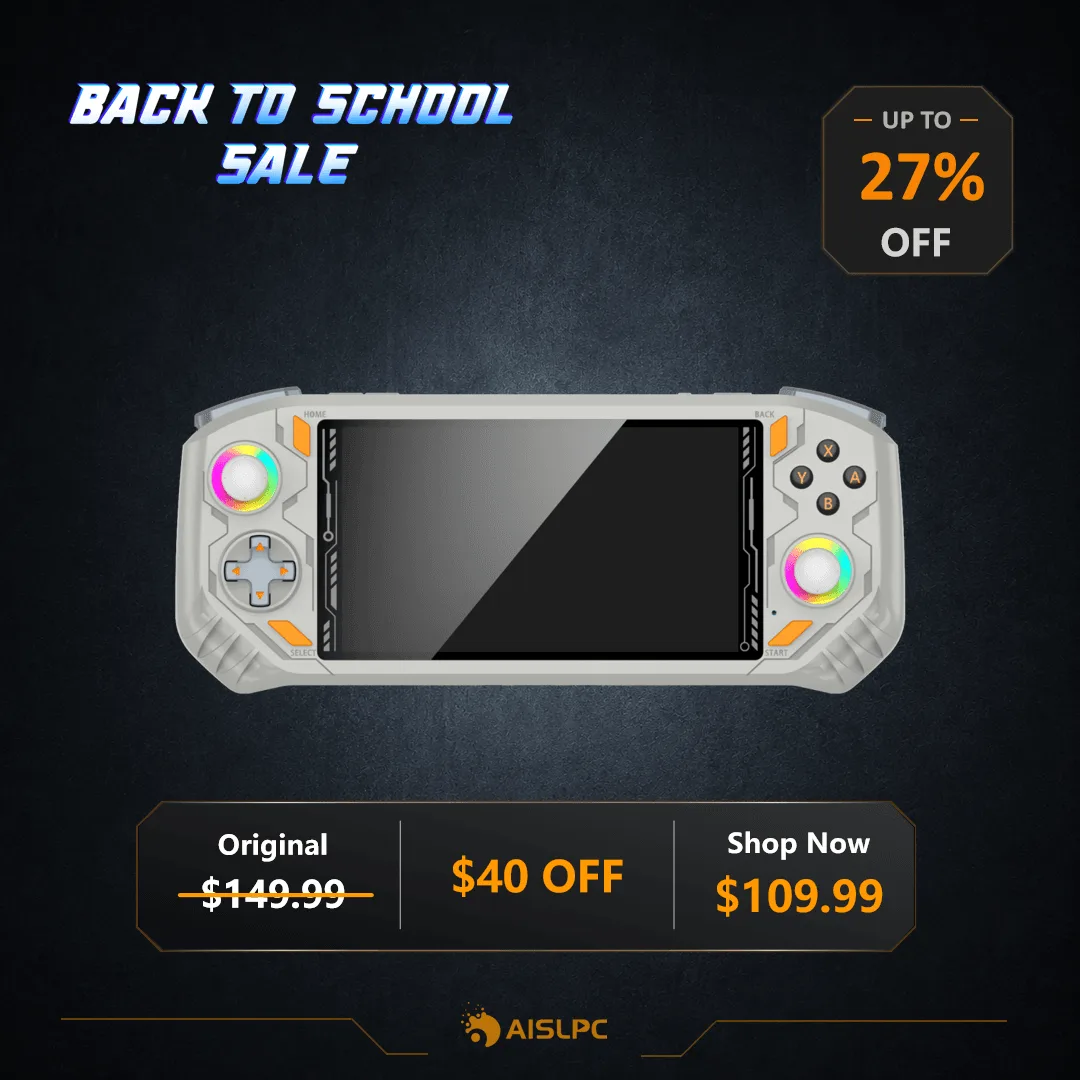
- AISLPC® - RG52 MINI Retro Handheld Game Console: AISLPC RG52 MINI Retro Handheld Game Console runs an RK3562 quad-core chip with EmuELEC and RGBOX dual systems, a 5.5-inch IPS 720x1280 full-lamination anti-glare display, and supports 5,000+ retro games. The dual-system setup lets you test the same game under two front ends, which is a fast way to tell whether lag comes from the emulator configuration or the display chain.
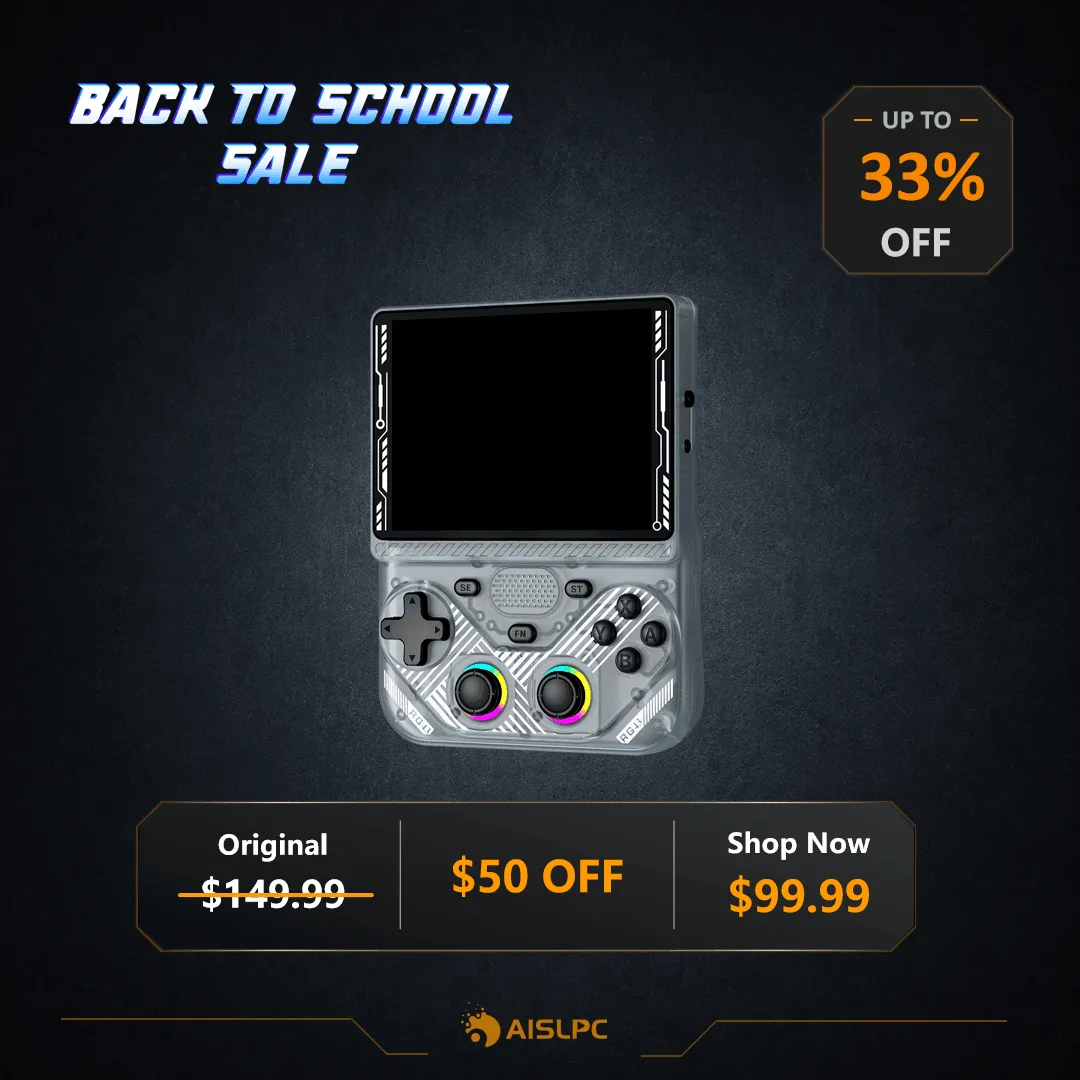
- AISLPC® - RG43V PRO Retro Handheld Game Console: AISLPC RG43V PRO Retro Handheld Game Console uses a Rockchip RK3562 quad-core 2.0GHz processor, a 4.3-inch IPS 1024x768 display, and supports 20+ classic gaming systems. Its lower-resolution screen means less per-frame rendering work, so it is often easier to hold a stable frame rate and keep controls feeling tight.