Quick answer
To set up a 2.4G wireless vertical ergonomic mouse, plug the USB receiver into your computer, insert batteries if needed, and turn the mouse on. Then adjust the DPI and pointer settings to match your comfort and work style.
Why vertical mice need a different setup approach
A vertical ergonomic mouse positions your hand in a handshake posture, which can reduce wrist strain during long work sessions. But that angled grip changes how you reach the buttons and scroll wheel, so you should tweak pointer speed and button assignments after pairing.
Unlike a standard mouse, the vertical design may feel unfamiliar at first. Give yourself a few days to adapt, and adjust the DPI setting to a level that feels natural rather than forcing your old habits.
Step-by-step setup guide
- Insert batteries and power on: Open the battery compartment, insert the required batteries (check the polarity), and slide the power switch to ON. If the mouse has a USB receiver stored inside, remove it. Check the battery level indicator if available; low batteries can cause intermittent connection issues.
- Plug in the USB receiver: Insert the USB receiver into an available USB port on your computer. Wait for the OS to recognize the device. Avoid USB hubs if possible; a direct port provides the most stable connection. If the mouse doesn't respond, try a different USB port and ensure the receiver is fully inserted.
- Pair the mouse: Most 2.4G mice pair automatically once the receiver is plugged in and the mouse is on. If not, press the connect button (if available) on the mouse and receiver, or follow the manual's pairing instructions. Keep the mouse within a few feet of the receiver during pairing to avoid interference.
- Adjust DPI and pointer speed: Use the DPI button on the mouse (if available) to cycle through sensitivity levels. Then go to your OS mouse settings to fine-tune pointer speed and acceleration to your preference. Start with a lower DPI and increase gradually to avoid overshooting clicks.
- Configure buttons and ergonomic positioning: Use your OS or manufacturer software to remap buttons if needed. Position the mouse so your arm rests naturally and your wrist stays straight, not bent up or down. If you feel strain after a few hours, adjust the mouse position or take a break – the vertical design helps but doesn't replace good posture.
Product spotlight
-
2.4G Wireless Vertical Ergonomic Optical Mouse: This Anker vertical mouse uses a 2.4G wireless connection and an optical sensor for precise tracking. The stable wireless link and accurate sensor mean you can pair it quickly and rely on it for everyday tasks without worrying about lag or skipping.
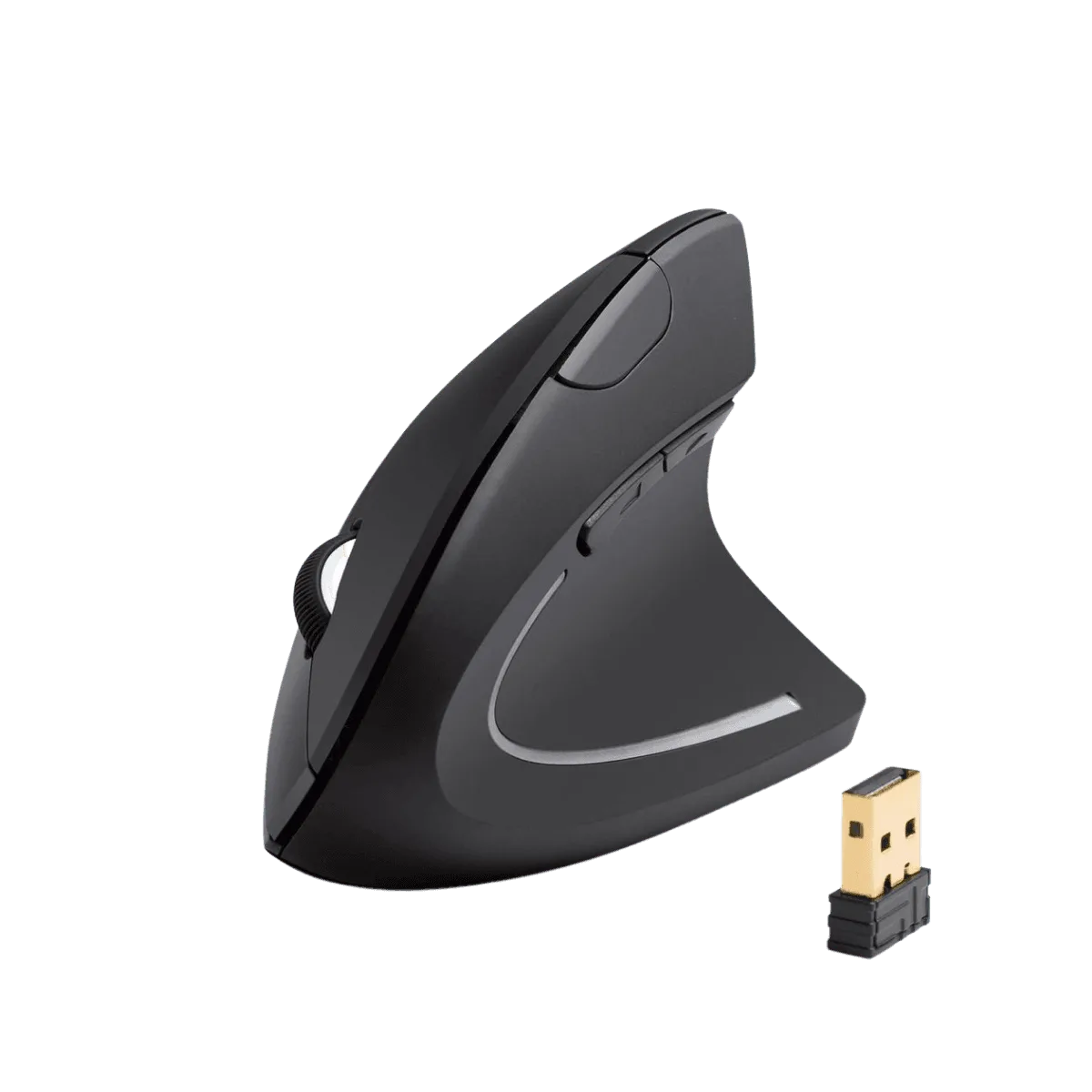
2.4G Wireless Vertical Ergonomic Optical Mouse