Quick Answer
To set up your Keydous NJ68 Pro for gaming, connect it via 2.4GHz wireless or USB-C wired mode, adjust the tilt and smart screen, and customize the hot-swap switches to your preferred feel.
Why Connection Mode Matters for Gaming
The Keydous NJ68 Pro offers tri-mode connectivity: wired, Bluetooth, and 2.4GHz wireless. For gaming, the 2.4GHz wireless mode provides a stable, low-latency connection without cable clutter, while wired mode ensures zero latency and keeps the keyboard charged. Bluetooth is best for casual use or when you need to switch between devices.
If you're sensitive to input lag, wired mode is the safest choice. For a clean desk setup, 2.4GHz wireless is a solid alternative—just ensure the USB receiver is within range and not blocked by metal objects.
Adjusting the Smart Screen and Control Knob
The NJ68 Pro features a tilt-adjustable smart screen and a multi-function control knob. The flip-up display lets you see system stats or custom settings at a glance, and the knob can be programmed for volume, scrolling, or other shortcuts. Properly adjusting these can streamline your gaming experience, letting you tweak settings without leaving the game.
Hot-Swap Customization: Finding Your Switch
The NJ68 Pro supports hot-swappable switches, so you can change the feel of your keyboard without soldering. If your current switches feel too heavy or too light for gaming, consider swapping to a linear switch for faster presses or a tactile switch for more feedback. This is a personal preference—experiment to find what suits your playstyle.
Step-by-Step Setup for Gaming
- Choose Your Connection Mode: For competitive gaming, connect via the included USB-C cable for a wired, zero-latency connection. Alternatively, plug the 2.4GHz receiver into your PC and switch the keyboard to wireless mode for a cable-free setup. Bluetooth is not recommended for fast-paced gaming due to potential input lag. Check that the keyboard is fully charged before going wireless to avoid mid-game disconnects.
- Adjust the Smart Screen and Control Knob: Flip up the smart screen to your preferred viewing angle. Use the control knob to set volume or other shortcuts that are handy during gameplay. Test that the screen is not blocked by your monitor or desk setup. Ensure the screen is not blocked by your monitor or desk setup.
- Customize Your Switches (Hot-Swap): If you want a different feel, use the hot-swap feature to replace the switches. Pull out the keycap and switch with a puller, then insert a new switch that matches your gaming style. Avoid forcing switches in the wrong orientation, as this can bend pins. Check that the switch pins are straight and aligned before pressing down.
- Test Your Setup: Open a game and test key responses, especially for movement and action keys. Confirm the connection is stable and the smart screen shows the correct info. If you notice any lag, switch to wired mode. Run a quick key-rollover test to ensure all keys register correctly.
Product Facts
-
Keydous NJ68 Pro Mechanical Keyboard: Versatile Tri-Mode Connectivity: Seamlessly switch between Wired, Bluetooth, and ultra-fast 2.4GHz wireless modes. This lets you choose the connection that best balances latency and convenience for your gaming setup.
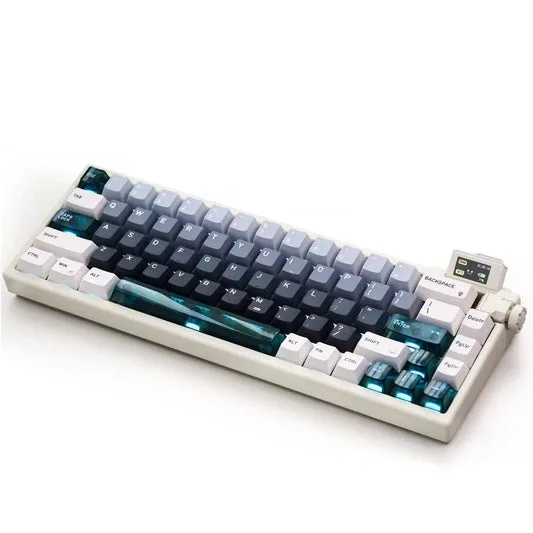
Keydous NJ68 Pro Mechanical Keyboard
-
Keydous NJ68 Pro Mechanical Keyboard: Tilt-Adjustable Smart Screen & Control Knob: Features a flip-up display screen for perfect viewing angles alongside an intuitive multi-function control knob. You can position the screen for easy visibility and use the knob for quick in-game adjustments.