Quick answer
To set up your USB-C to HDMI 2.1 8K cable, connect the USB-C end to your device and the HDMI end to a compatible display, then configure your display settings for 8K/60Hz or 4K/120Hz output.
Why a dedicated HDMI 2.1 cable matters
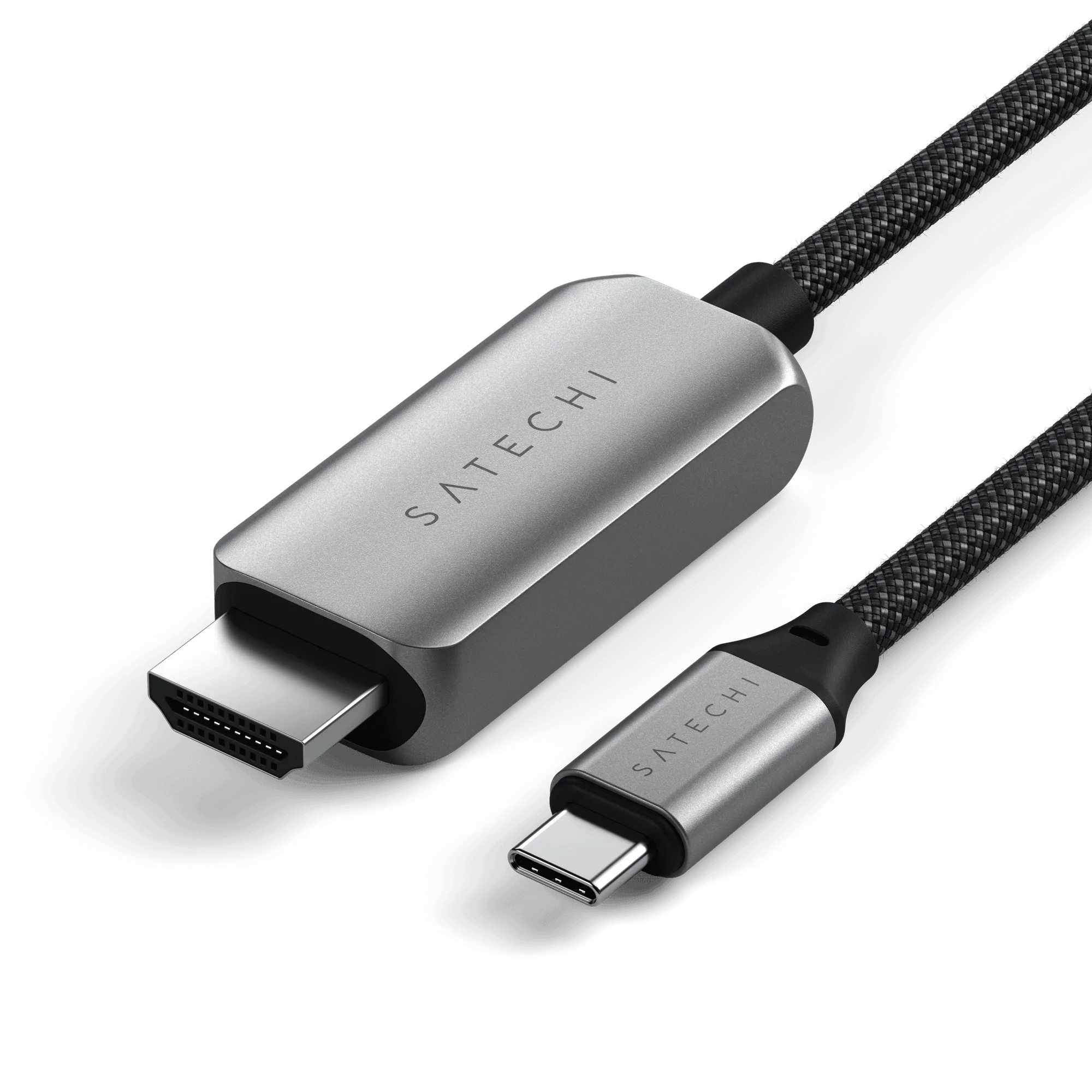
Not all USB-C to HDMI cables support the full bandwidth required for 8K/60Hz or 4K/120Hz. A cable certified for HDMI 2.1 ensures you get the higher refresh rates and resolution without signal dropouts or compression artifacts. The Satechi USB-C to HDMI 2.1 8K Cable is built for this exact purpose, with a braided 2M cable and reinforced neck for durability.
What you need before you start
You need a USB-C device (such as a MacBook, iPad Pro, or Windows laptop) that supports DisplayPort Alt Mode or USB-C video output. Your display must have an HDMI 2.1 input and support 8K at 60Hz or 4K at 120Hz. Older HDMI 2.0 displays will work but are limited to 4K/60Hz.
Step-by-step setup guide
- Connect the USB-C end to your device: Plug the USB-C connector firmly into your laptop, tablet, or phone. Ensure the port supports video output (look for a DisplayPort or Thunderbolt icon). If nothing appears on the display, your device may not support video over USB-C.
- Connect the HDMI end to your display: Insert the HDMI 2.1 connector into your monitor or TV. Use a port labeled HDMI 2.1 for best performance; HDMI 2.0 ports will limit resolution and refresh rate. Check your display's input label to avoid plugging into a legacy HDMI port.
- Select the correct input source: On your display, switch to the HDMI input you used. Use the remote or on-screen menu to select the correct source.
- Configure display settings on your device: On macOS, go to System Settings > Displays and choose the desired resolution and refresh rate (e.g., 8K/60Hz or 4K/120Hz). On Windows, right-click the desktop > Display Settings > Advanced Display Settings. If 8K/60Hz is not listed, your cable or display may not support HDMI 2.1 bandwidth.
- Test the connection: Play a high-resolution video or game to confirm smooth playback. If you experience flickering or blackouts, check cable connections and try a different HDMI port. A loose connection is the most common cause of intermittent signal loss.
Product highlight
-
USB-C To HDMI 2.1 8K Cable: Supports 4K/120Hz and 8K/60Hz video with a sleek aluminum enclosure, braided 2M cable, and reinforced neck. This cable delivers the full HDMI 2.1 bandwidth needed for high-refresh-rate gaming or ultra-high-resolution content, and its durable build reduces wear at connection points.
USB-C To HDMI 2.1 8K Cable