Quick answer
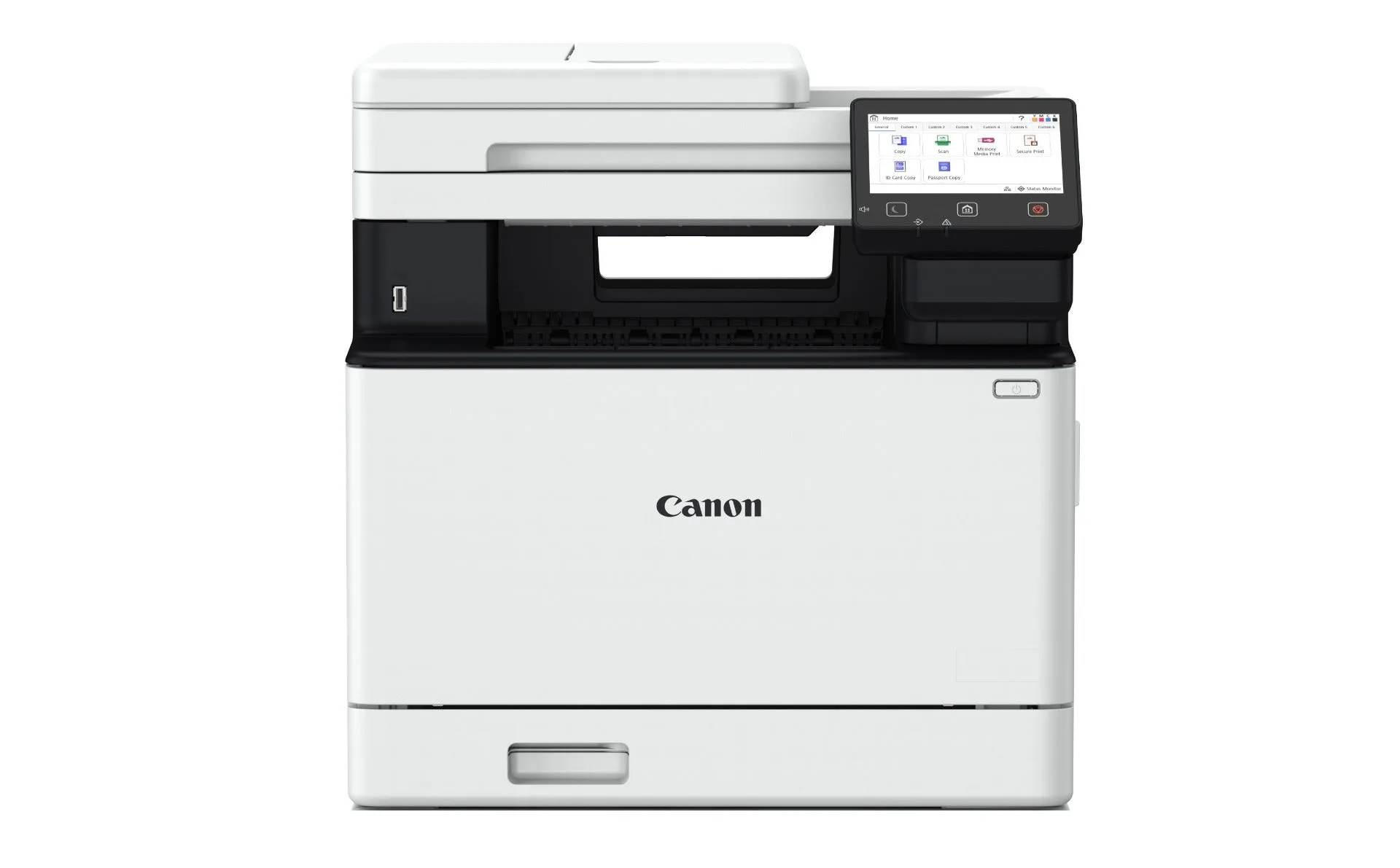
Set up the Canon imageCLASS MF756Cx II by unboxing and removing all packing tape, installing the toner cartridges, loading paper, connecting to power and your network, installing the driver, and then printing a test page. The whole process takes about 30–45 minutes. For a wireless connection, use the 5-inch colour touchscreen to select your Wi-Fi network and enter the password.
What you need before you start
Gather these items before unpacking: the printer, power cord, toner cartridges (included), a USB cable (optional, for wired setup), your Wi-Fi network name and password, and a computer or mobile device. The MF756Cx II ships with starter toner, but you may want to order replacement cartridges soon if you print frequently. For small office colour laser setup, a stable Wi-Fi network or Ethernet connection is essential.
Unbox and position the printer
Remove all orange tape, foam, and protective film from inside and outside the printer. Lift the printer by its handles and place it on a flat, stable surface near a power outlet and your network router. Leave at least 10 cm of space around the vents for airflow. Common mistake: leaving a piece of tape on the toner cartridge or scanner glass, which causes streaks or errors.
Install the toner cartridges
Open the front cover. Remove each toner cartridge from its packaging, gently shake it side to side five or six times to distribute the toner, and pull off the orange protective cap. Insert each cartridge into its matching colour slot (cyan, magenta, yellow, black) until it clicks. Close the cover. Checkpoint: the touchscreen should display no toner errors. If you see a message, reseat the cartridge.
Load paper and connect power
Pull out the paper cassette, adjust the guides to fit your paper size (A4 or Letter), and load a stack of plain paper. Fan the paper before loading to prevent jams. Slide the cassette back in. Plug the power cord into the printer and a wall outlet, then press the power button. The printer will warm up and run a brief initialization.
Connect to your network wirelessly
On the 5-inch colour touchscreen, tap 'Wireless LAN' or 'Network' and select your Wi-Fi network from the list. Enter your Wi-Fi password using the on-screen keyboard. If your router supports WPS, you can press the WPS button on the router and then select 'WPS Push Button' on the printer. For a wired connection, plug an Ethernet cable into the printer's LAN port and the router. Checkpoint: the Wi-Fi icon on the screen should stop blinking and stay solid.
Install the driver and software
On your computer, go to the Canon support website and download the latest driver for the imageCLASS MF756Cx II. Run the installer and follow the prompts. Choose 'Wireless LAN' if you connected via Wi-Fi. The installer will search for the printer on your network. If it doesn't find it, ensure your computer is on the same network and temporarily disable any VPN. For mobile printing, install the Canon PRINT app from your app store.
Perform a test print
Open any document or image and select Print. Choose the Canon MF756Cx II as your printer. For colour, make sure 'Colour' is selected in the print settings. Print a test page or a colour document. Check the output for sharp text and accurate colours. If colours look faded, run a nozzle check or cleaning cycle from the printer's maintenance menu. Common mistake: printing on the wrong paper type setting, which can cause smudging.
Set up shortcuts for efficiency
The MF756Cx II has a customizable touchscreen where you can add shortcuts for frequent tasks like scanning to email or printing a form. Tap 'Home' then 'Shortcut' to add a new shortcut. This saves time in daily workflows. For small offices, setting up scan-to-folder or scan-to-email can reduce manual steps.
Setup steps at a glance
- Unbox and remove all tape: Check for orange tape on the toner cartridge and scanner glass. Missing a piece causes streaks or errors. Printer should be free of all packaging.
- Install toner cartridges: Shake each cartridge, remove the orange cap, and insert into the correct colour slot until it clicks. No toner errors on screen.
- Load paper and power on: Fan paper, load into cassette, plug in, and press power. Printer warms up. Ready screen appears.
- Connect to Wi-Fi: Use touchscreen to select your network and enter password. Or use WPS. Wi-Fi icon stays solid.
- Install driver: Download from Canon support site, run installer, choose wireless LAN. Printer appears in your device list.
- Print a test page: Print a colour document to check quality. Run cleaning if needed. Sharp text and vibrant colours.
Why the MF756Cx II fits small offices
- imageCLASS MF756Cx II: Accelerate Efficiency, Elevate Print ExperienceAccelerate business efficiency to the next level, the MF756Cx II offers swift colour printing and scan capability. Fast colour printing and scanning means less waiting for documents, which is crucial in a busy small office.
- imageCLASS MF756Cx II: With its easy-to-navigate customisable shortcuts and 5" colour touchscreen display, the printer helps to simplify workflows for better work efficiency. The touchscreen and shortcuts reduce the learning curve and speed up everyday tasks like scanning and copying.
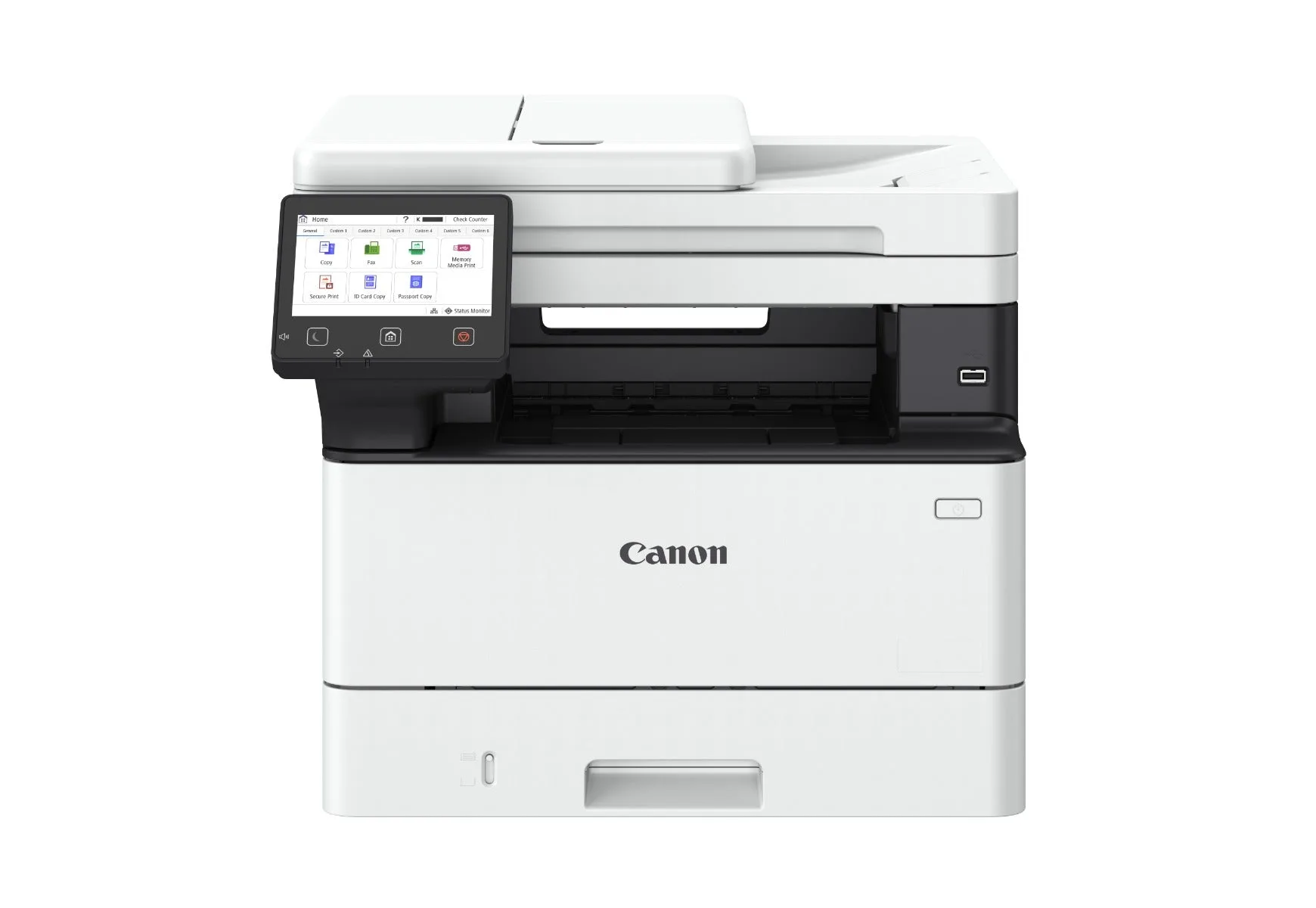
- imageCLASS MF465dw II: Drive Efficiency with the Compact 4-in-1 Multifunction PrinterBoost productivity of your dynamic office to a new height. Designed with fast printing and scanning capability, versatile connectivity and easy maintenance, the MF465dw II is a compact powerhouse that keeps your workflow seamless and efficient. If space is tight, the MF465dw II offers similar multifunction capabilities in a smaller footprint, though it may lack some advanced features of the MF756Cx II.
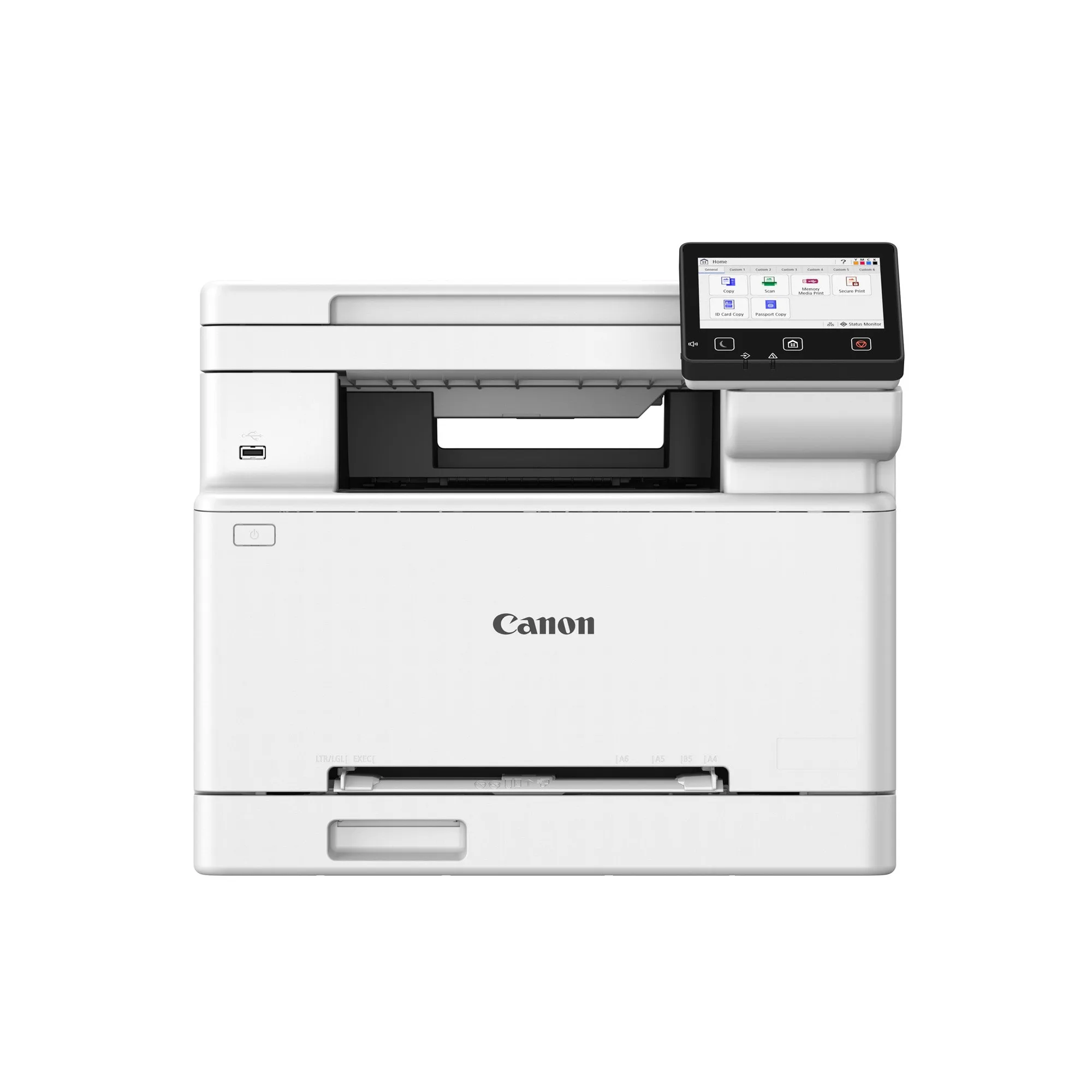
- imageCLASS MF662Cdw: Create Impactful Visuals with Colour MultifunctionThe MF662Cdw offers duplex printing, a user-friendly touchscreen, and secure operation — perfect for businesses that value simplicity and speed. The MF662Cdw is a more affordable colour multifunction option with duplex printing and secure operation, ideal for basic needs.