Quick Answer
Mount the Lume Cube Video Conference Lighting Kit to your laptop or monitor, connect via USB for continuous power, and adjust the brightness to eliminate shadows on your face.
Why the Lume Cube Kit Works for Video Calls
Most built-in webcams struggle in low light, leaving you looking dim or shadowy. This kit adds a soft, adjustable light directly at eye level, which mimics natural daylight and helps you appear more polished on Zoom, Teams, or Google Meet.
The included mount clips onto nearly any laptop lid or monitor bezel, so you don't need extra desk space. The light itself is lightweight and runs on its internal battery or USB power, giving you flexibility whether you're at a desk or working from a coffee shop.
What to Consider Before You Start
Check your laptop or monitor thickness. The mount works best on devices with a lid or bezel between 0.2 and 0.6 inches thick. Thinner tablets or ultrabooks may need a slight adjustment to the clip's grip.
If you plan to use the light for long calls, plugging it into a USB port ensures you won't run out of battery mid-meeting. The internal battery is convenient for short sessions, but indefinite external power is available via the USB port.
Step-by-Step Setup Guide
- Attach the Mount to Your Laptop or Monitor: Open the clip and slide it onto the top edge of your laptop lid or monitor bezel. Center it above the webcam if possible. Press until it grips firmly. A common mistake is mounting it off-center, which creates uneven light on one side of your face.
- Connect the Light to the Mount: Slide the Lume Cube light into the mount's holder until it clicks. The ball joint lets you tilt the light up or down. Aim it so the light hits your face, not the screen. If the light wobbles, tighten the mount's adjustment knob gently — overtightening can strip the plastic threads.
- Power On and Adjust Brightness: Press the power button on the light. Use the brightness control to set a level that removes shadows without washing out your face. Start at medium and adjust from there. Too bright can cause glare on glasses or make you look overexposed. Test with your webcam preview open.
- Choose Your Power Source: For short calls, use the internal battery. For all-day use, connect the included USB cable to a laptop or wall adapter. The light runs indefinitely on external power. A drained battery mid-call is avoidable — plug in if your meeting runs longer than an hour.
- Position Yourself in the Light: Sit facing the camera with the light at eye level. Adjust your chair or the mount so the light is about 12–18 inches from your face. Check that your face is evenly lit with no harsh shadows under your nose or chin. If shadows remain, try tilting the light slightly downward or moving it closer. The goal is soft, even illumination.
About the Lume Cube Video Conference Lighting Kit
-
Lume Cube Video Conference Lighting Kit - Open Box: Designed for portability and versatility, this lightweight kit can be powered by either its internal battery or the USB port for indefinite external power. You can use it unplugged for short calls or leave it connected to a USB port all day without worrying about battery life.
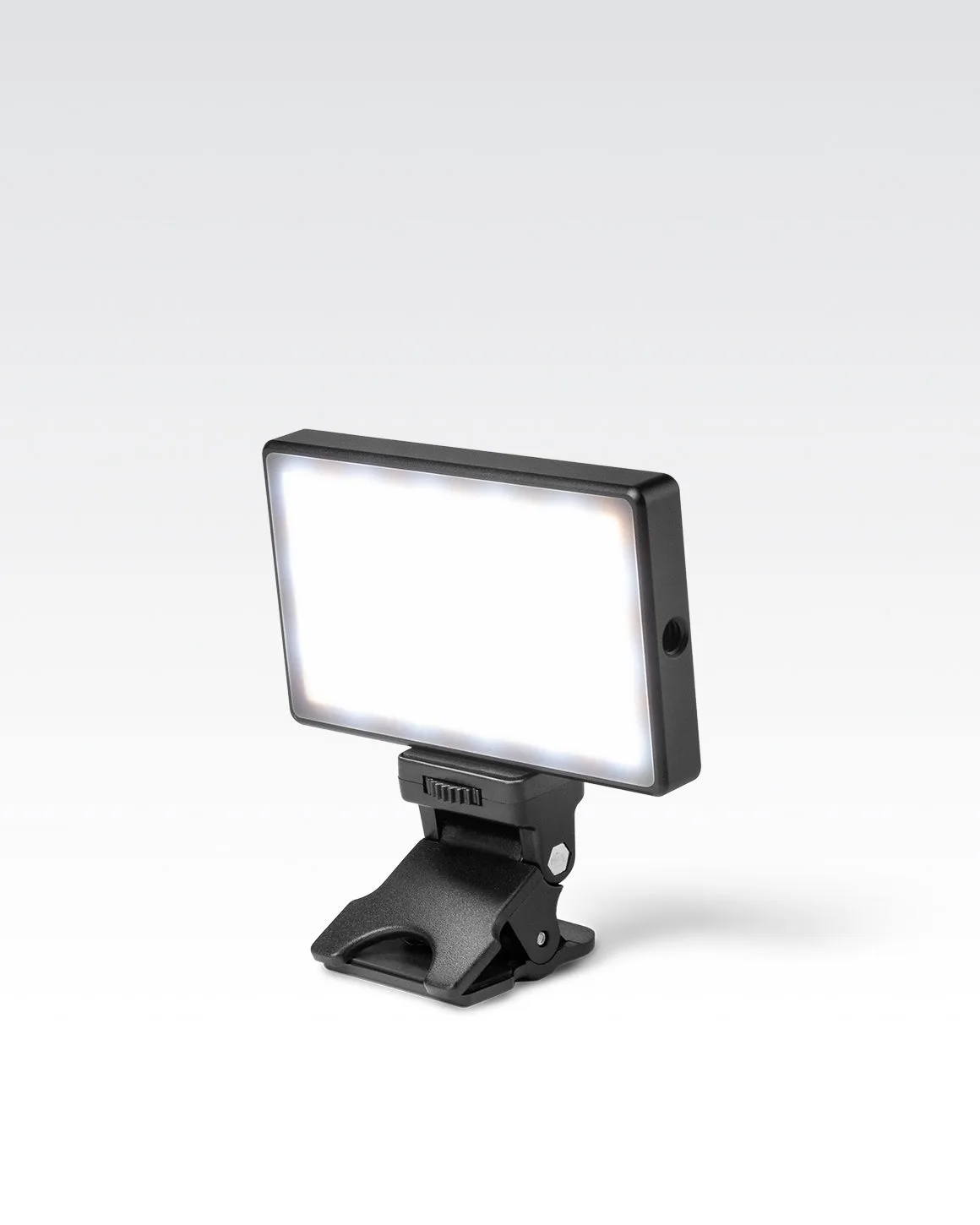
Lume Cube Video Conference Lighting Kit - Open Box