Quick answer
If your Canon printer stops printing, start by checking the paper path for jams, verifying ink or toner levels, and ensuring the printer is properly connected to your device. Most printing problems can be resolved in a few minutes without a service call.
Check the basics first
Before diving into complex fixes, confirm the printer is powered on and has paper loaded correctly. Open the paper tray, fan the stack, and reinsert it to avoid misfeeds. Also check that the ink or toner cartridges are properly installed and not empty. For monochrome laser models like the imageCLASS MF284dw, low toner can cause blank pages or stop printing entirely.
Clear paper jams and feed errors
Paper jams are the most common reason a Canon printer stops mid-job. Open the front cover and gently remove any stuck paper, tearing it in the direction of the feed path if necessary. Check the rear access panel and duplex unit for hidden scraps. After clearing, close all covers and press the Stop/Reset button to resume. If jams recur, inspect the rollers for dust or wear.
Resolve connectivity and driver issues
A printer that appears online but won't print often has a connection problem. For wireless models like the PIXMA TR4670S or PIXMA E4570, restart your router and printer, then re-run the wireless setup. On Windows or macOS, open the printer queue, cancel stuck documents, and set the printer as default. Reinstalling the latest driver from Canon's support site can fix communication errors.
Run the built-in nozzle check and cleaning
If printouts show streaks, missing colors, or are completely blank, the print head nozzles may be clogged. On the printer's LCD panel, navigate to Maintenance or Setup and select Nozzle Check. Print the pattern, then run a cleaning cycle if needed. For inkjet models, this step usually resolves faint or missing output. Allow 15 minutes between cleanings to avoid wasting ink.
Diagnosis checklist for a Canon printer that won't print
- Printer powers on but does nothing: Check the display for error codes (e.g., E, P, or service codes). Open the paper tray and rear cover for jams. Verify ink/toner cartridges are inserted correctly. If no jam and cartridges are fine, proceed to connection check.
- Job stuck in the print queue: Open the printer queue on your computer, cancel all documents, and restart the printer. Set the printer as default and try a test page. If the queue clears but still no print, reinstall the driver.
- Wireless printer not found by devices: Restart the router and printer. On the printer, run the wireless setup again. Confirm the device is on the same network. If the printer still doesn't connect, try a USB cable as a temporary fix.
- Printout is blank or has streaks: Run a nozzle check from the printer's maintenance menu. If the pattern is incomplete, run a cleaning cycle. Wait 15 minutes and repeat. If two cleaning cycles don't help, replace the ink cartridge or print head.
Printer models mentioned in this guide
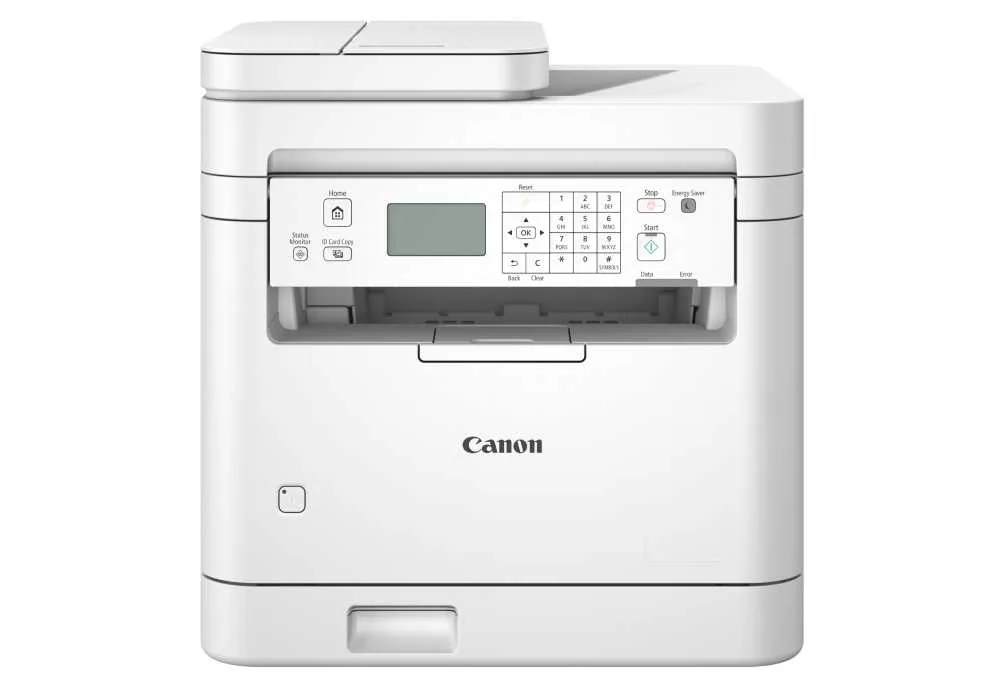
- imageCLASS MF284dw: Monochrome Multifunction for Small Business. Print, Scan, Copy. Print Speed (A4): Up to 33 ppm. First Print Out Time (A4): Approx. 5.0 sec. Print Resolution: Up to 1,200 x 1,200 dpi (equivalent). If your imageCLASS MF284dw stops printing, the first check should be toner level and paper feed. Its fast first-page-out time means a delay usually indicates a jam or connectivity issue.
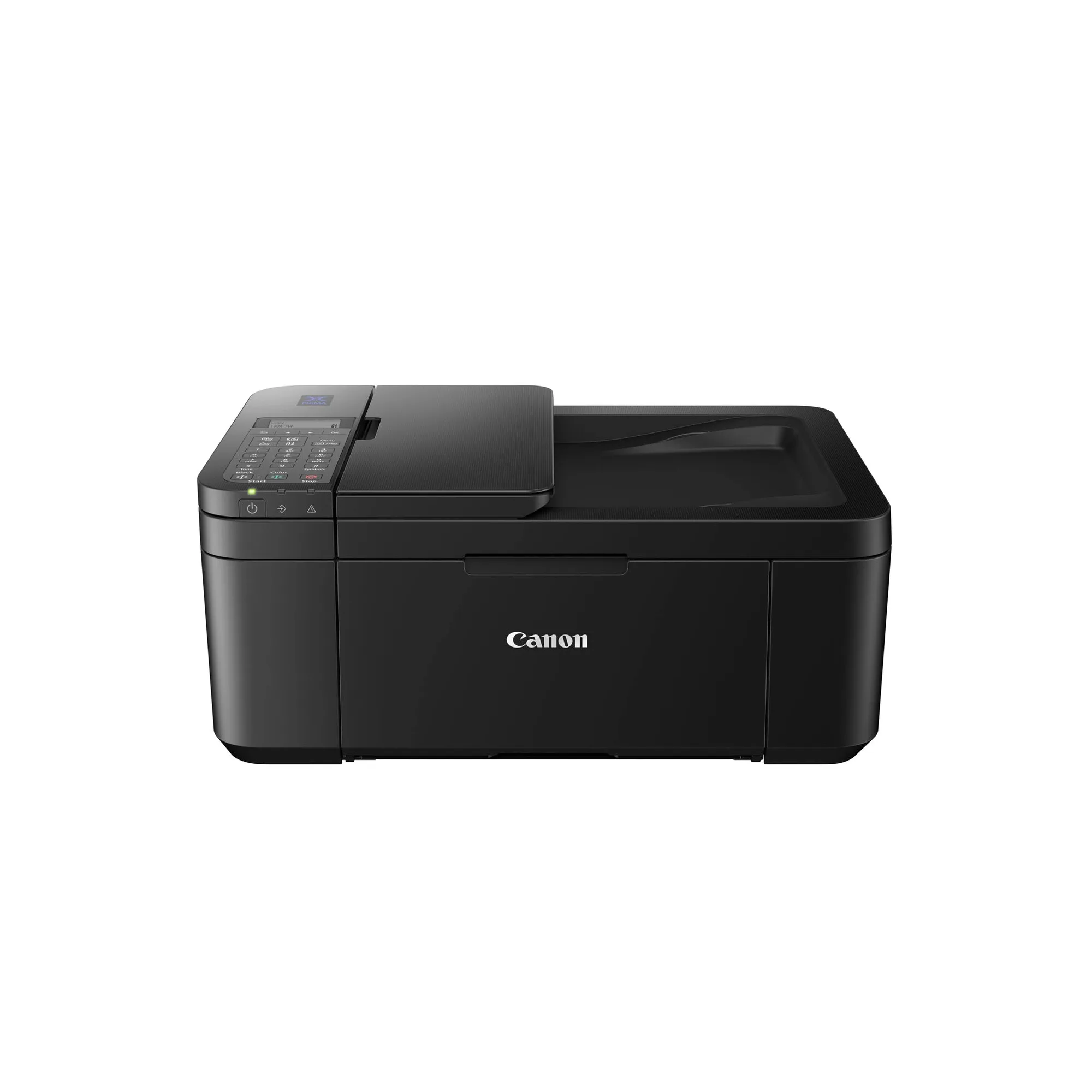
- PIXMA TR4670S: Compact Wireless Office All-In-One with Fax and Automatic 2-Sided Printing. ISO standard print speed (A4): up to 8.8 ipm black / 4.4 ipm. Wireless, Mopria, AirPrint, Direct Wireless. For the PIXMA TR4670S, wireless connection drops are a common cause of no-print errors. Restarting the router and re-pairing via AirPrint often resolves it.
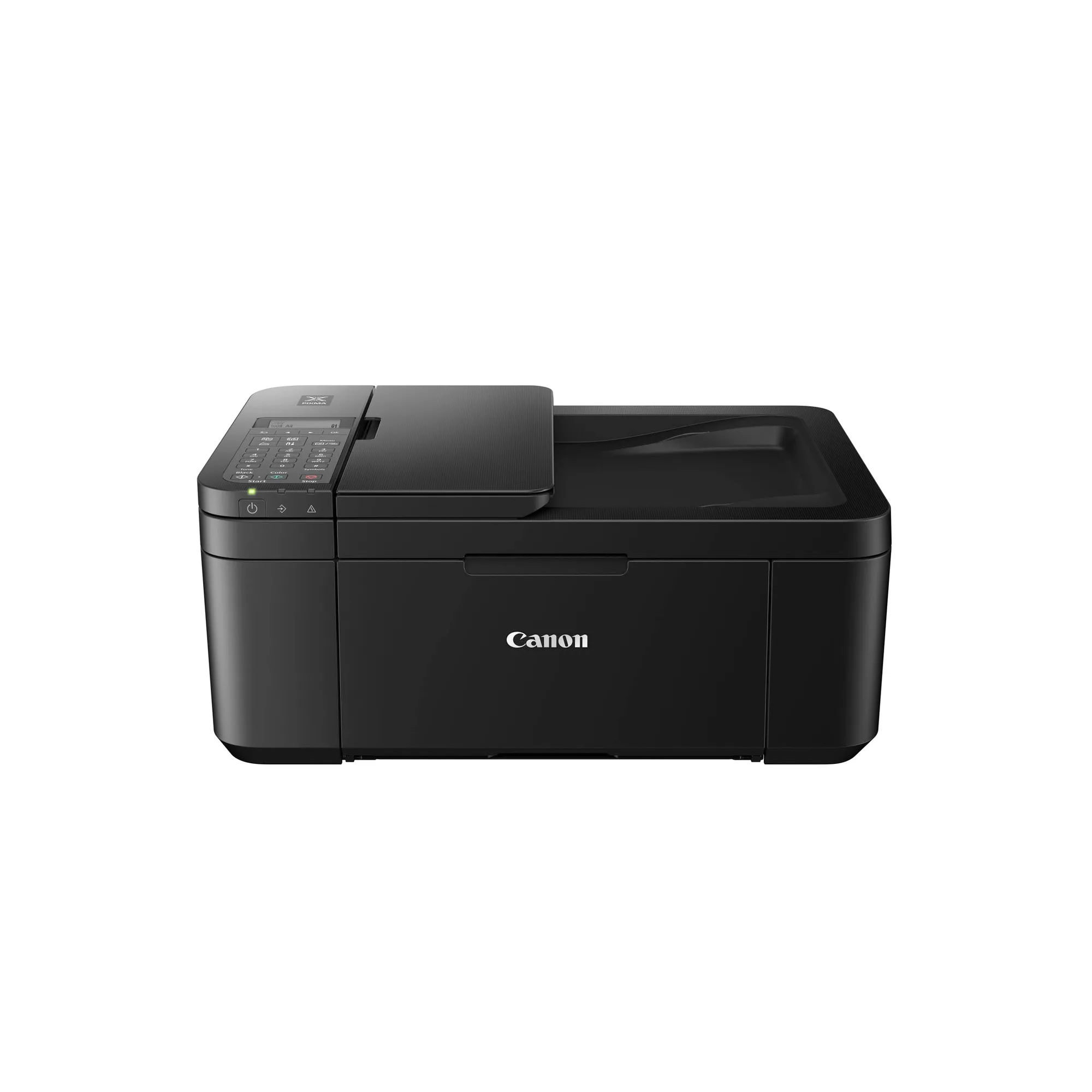
- PIXMA E4570: Compact Wireless All-In-One with Fax and Automatic 2-sided Printing for Low-Cost Printing. Up to 400 pages yield with high-capacity ink cartridges. Wireless, Mopria, AirPrint, Direct Wireless. The PIXMA E4570's high-capacity cartridges reduce change frequency, but if printing stops, check the ink level first. A clogged print head is also possible after long idle periods.