Quick answer
Close the Sphero Edu or Sphero Play app completely, toggle your device's Bluetooth off and on, then reopen the app and let it scan for the robot instead of pairing through your phone's Bluetooth settings. If the robot still doesn't appear, charge it for at least 30 minutes and try again. Most Sphero connection problems are app-level or power-level issues, not hardware faults.
Confirm the robot is actually awake and charged
A Sphero robot that has been sitting in a classroom bin for a week may simply be out of power. Connect it to its charging cable and watch for the charging indicator to settle into a steady state rather than a blinking one. A robot that is still charging will often power on but drop the Bluetooth link within seconds, which looks exactly like a pairing failure.
Give it a full charge cycle before you troubleshoot anything else. If the indicator never changes after an hour on a known-good cable and adapter, the problem is power delivery, not Bluetooth, and no amount of app restarting will fix it.
Fix the app before you touch your phone settings
Sphero robots connect through the Sphero Edu or Sphero Play app, not through your device's system Bluetooth menu. If you previously paired the robot in your phone's Bluetooth settings, remove that entry. A stale system-level pairing can block the app from claiming the robot.
Then force-close the app, turn Bluetooth off and on, and reopen the app. Grant Bluetooth and location permissions when prompted, because some Android versions require location permission for Bluetooth scanning to return any results at all. Keep the robot within about a meter of your device during the scan.
Clear interference and competing connections
In a classroom, dozens of devices and robots share the same 2.4 GHz space. If you are trying to connect one robot while twenty others are powered on nearby, the app's device list can become confusing or slow to populate. Power down the robots you are not using, and move away from Wi-Fi access points, microwaves, and dense metal furniture.
Only one device should hold the connection at a time. If a student's tablet is still connected to the robot from the last lesson, your device will not see it. Ask everyone nearby to close the app and switch Bluetooth off, then try your scan again.
When to stop troubleshooting and change your approach
If the robot charges fully, appears in the app's scan list, but disconnects within a minute every time, stop repeating the same steps. Test it with a second device. If it holds a connection there, the issue is your original device or its operating system version, not the robot.
If no device can hold a connection after a full charge and a clean app install, treat it as a hardware or firmware problem and contact Sphero support rather than continuing to reset. For a class that needs to run today, keep a spare robot or a wired-free alternative activity ready so the lesson does not stall.
Connection problem diagnosis
- Robot does not appear in the app scan list: The robot is likely off, deeply discharged, or already connected to another device. Charge it fully, power it on, and confirm no other phone or tablet is holding the connection. If it still does not appear after a full charge and a clean app restart, test with a second device before assuming a hardware fault.
- Robot appears, then disconnects within seconds: This usually points to a weak battery or Bluetooth interference. Charge the robot completely and move away from other powered robots, Wi-Fi access points, and metal furniture. A consistent drop at the same point in every session is a power or environment issue, not a pairing issue.
- App freezes or shows no devices at all: Force-close the app, remove any old system-level Bluetooth pairing for the robot, then reopen the app and re-grant Bluetooth and location permissions. If the app still returns nothing on two different devices, reinstall the app once, then contact Sphero support.
Products that help you avoid connection dead ends
- BOLT Coding Robot: Sphero BOLT is a coding robotic ball with advanced sensors, designed for educators who want to build students' curiosity in STEM, creativity, and coding skills. Because BOLT is app-driven, a clean Bluetooth handshake is the whole lesson. Knowing its sensor-rich design also tells you a dropped connection mid-activity loses more than driving control, so a spare charged unit is worth having.
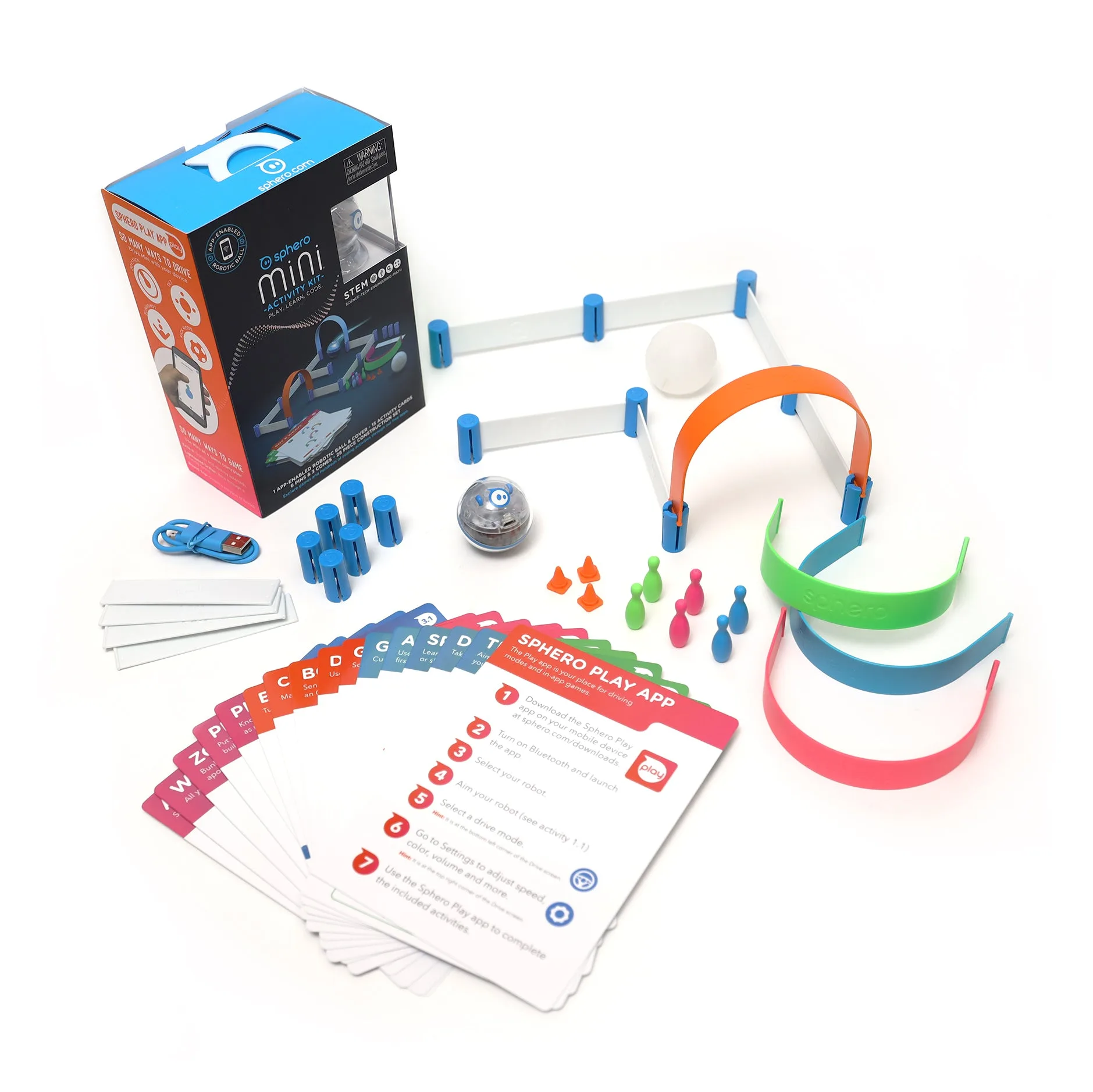
- Mini Activity Kit - Kids Coding Activity Kit: The Sphero Mini Activity Kit includes a clear-shelled Sphero Mini, a construction set, 15 STEM-inspired activity cards, bowling pins, and cones, and works with either the Sphero Play App or the Sphero Edu App. The physical activity cards and construction pieces let a lesson continue even if a device connection fails, which makes this kit a practical backup plan for classrooms that depend on app connectivity.