Quick Answer
Most USB-C hub issues come down to power delivery, driver conflicts, or cable compatibility. Start by checking that your hub is getting enough power and that your laptop's USB-C port supports the features you need (like video output or data transfer). A simple reboot or port swap often resolves detection problems.
Hub Not Detected by Laptop
If your laptop doesn't recognize the hub at all, the first step is to check the USB-C port itself. Try plugging the hub into a different USB-C port on your laptop—some ports are charge-only or have limited data capability. If your hub has a separate power adapter, make sure it's connected to a wall outlet; many hubs require external power to function, especially when driving multiple peripherals or a high-resolution display.
Driver issues can also cause detection failures. On Windows, open Device Manager and look for unknown devices or devices with a yellow exclamation mark. Right-click and update the driver, or uninstall and reboot to let Windows reinstall it automatically. On macOS, reset the SMC (System Management Controller) if the hub remains undetected after a restart.
USB-C Hub Monitor Not Working (No Display)
A common frustration is plugging in a monitor and getting a blank screen. First, confirm that your laptop's USB-C port supports DisplayPort Alt Mode or Thunderbolt 3/4—without this, video output won't work. Check your laptop's specifications or look for a DisplayPort or Thunderbolt icon next to the port.
If the port supports video, try a different HDMI or DisplayPort cable. Some cables are rated for lower resolutions and may fail at 4K. Also, verify that the monitor is set to the correct input source. If you're using a hub with multiple video outputs, note that some hubs can only drive one external display at a time, especially on laptops with limited bandwidth.
Intermittent Disconnections or Slow Data
If your hub disconnects randomly or data transfers are sluggish, power is often the culprit. Hubs that draw power from the laptop's USB-C port may not get enough juice when connected to multiple devices. Use the hub's external power adapter if available, or disconnect non-essential peripherals to reduce load.
Cable quality also matters. A damaged or low-quality USB-C cable can introduce signal loss and instability. Try a certified cable (USB-IF certified) that supports the required data speed (USB 3.2 Gen 2 or higher). Finally, avoid using extension cables or daisy-chaining hubs, as this can degrade the signal.
Diagnosis: Find the Real Cause
- Symptom: Hub not detected: Laptop shows no new device. Likely causes: port incompatibility, missing drivers, or insufficient power. Check port type, update drivers, and connect external power. If still not detected, the hub may be faulty.
- Symptom: No video output: Monitor stays black. Likely causes: laptop port lacks DisplayPort Alt Mode, wrong cable, or monitor input mismatch. Verify port supports video, try a different cable, and set monitor input. If none work, consider a hub with dedicated video support.
- Symptom: Random disconnects: Hub drops connection during use. Likely causes: power starvation, cable degradation, or USB bandwidth overload. Use external power, swap cables, and reduce connected devices. Persistent issues may indicate a hub hardware defect.
Hubs That Can Help
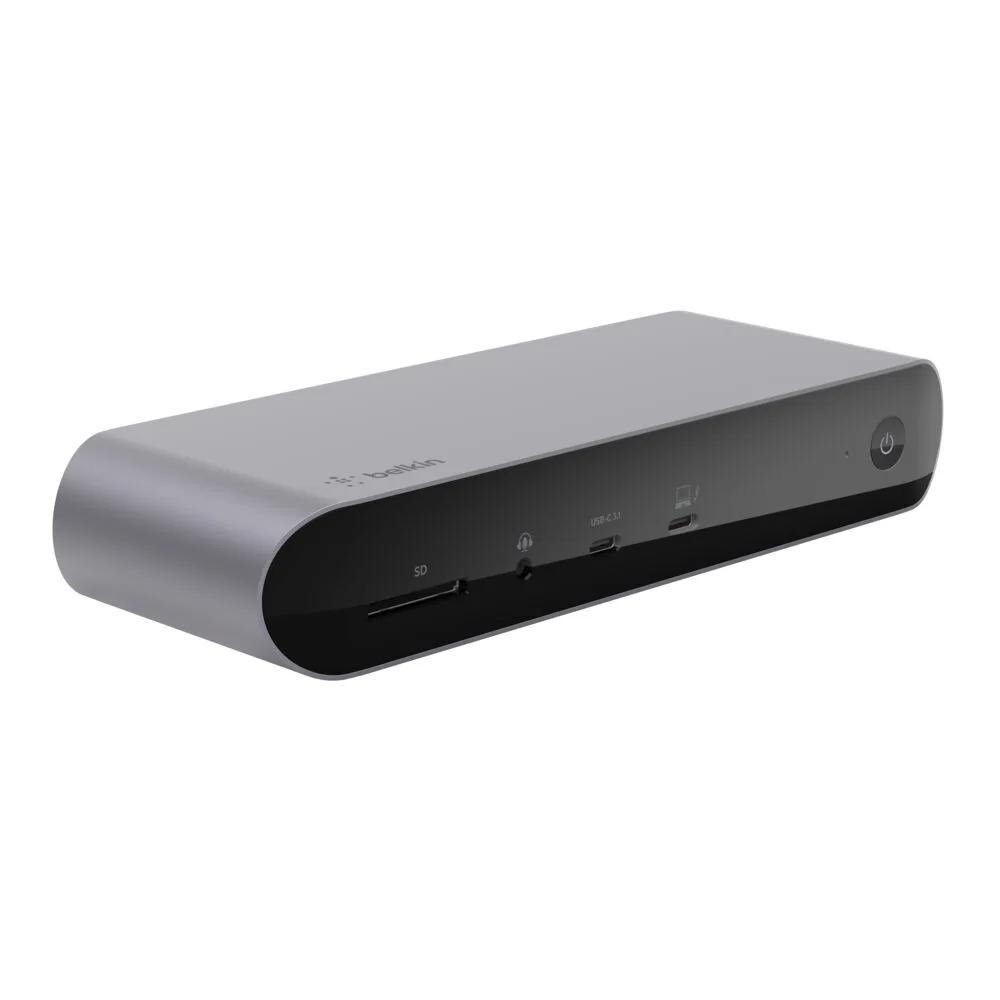
- Universal USB-C 8-in-1 Dual Display Core Hub: The Universal USB-C 8-in-1 Dual Display Core Hub offers dual display support and a range of ports through a single USB-C connection. If you need to drive two monitors and multiple peripherals, this hub provides the bandwidth and port variety to reduce connection conflicts.
- 5-Port USB-C Hub with 4K HDMI: The 5-Port USB-C Hub with 4K HDMI includes a 4K HDMI output and plug-and-play setup, ideal for streamlined workspaces. For a compact, portable hub that reliably handles a single 4K display and essential peripherals, this model minimizes complexity and potential failure points.