The 8BitDo arcade stick is a favorite among retro gaming enthusiasts for its authentic feel and versatile connectivity. Whether you're playing on PC, Nintendo Switch, or even modern consoles, the arcade stick offers both Bluetooth and 2.4G wireless options, giving you the freedom to play without cables. However, setting it up correctly can sometimes be confusing, especially when you're switching between devices.
In this guide, we'll walk you through the entire 8BitDo arcade stick setup process, covering both Bluetooth and 2.4G modes. You'll learn how to connect it to your PC, Switch, and other platforms, plus troubleshooting tips to ensure a smooth gaming experience. By the end, you'll be ready to dominate your favorite fighting games and retro classics with precision and style.
Understanding Your 8BitDo Arcade Stick Modes
Before diving into the setup, it's essential to understand the different modes your 8BitDo arcade stick supports. Most 8BitDo arcade sticks, like the popular 8BitDo M30 2.4G Wireless Gamepad, offer multiple connectivity options: Bluetooth, 2.4G wireless via a USB receiver, and wired USB. Each mode has its advantages: Bluetooth is great for flexibility, 2.4G offers lower latency, and wired ensures a stable connection with zero battery worries.
The arcade stick typically has a mode switch or a combination of buttons to enter different modes. For example, holding the Home button while connecting can switch between X-Input, D-Input, and Mac modes. Knowing which mode to use for your device is key to a successful connection.
- Bluetooth: Best for mobile devices, Switch, and PC when you want cable-free play.
- 2.4G: Ideal for PC and consoles where you need minimal lag and a dedicated receiver.
- Wired: Use when you want to charge while playing or ensure the most stable connection.
How to Connect Your 8BitDo Arcade Stick via Bluetooth
Connecting your 8BitDo arcade stick via Bluetooth is straightforward. First, ensure your arcade stick is fully charged or plugged in. Then, put the stick into pairing mode by holding the Pair button (often the small button on the back) for about 3 seconds until the LED starts flashing rapidly. On your PC, go to Bluetooth settings and search for new devices. Select the arcade stick from the list, and it should pair automatically.
For Nintendo Switch, go to System Settings > Controllers and Sensors > Change Grip/Order. Hold the Pair button on the arcade stick until it vibrates or the LED flashes, then it will appear on the Switch screen. Select it to connect. Remember that some 8BitDo arcade sticks require you to switch to the correct input mode (like Switch mode) by holding the Home button and a specific face button simultaneously.
If you're using the arcade stick with a PC via Bluetooth, you may need to ensure your PC's Bluetooth adapter supports the appropriate profile. Most modern PCs do, but if you encounter issues, consider using the 2.4G receiver instead for a more reliable connection.
- Tip: On PC, always check the device manager to see if the arcade stick is recognized as a gamepad.
- Tip: If the connection drops, try re-pairing by deleting the device from your Bluetooth list and starting over.
Setting Up 2.4G Wireless Connection
The 2.4G connection is often the preferred choice for gamers who want the lowest possible latency. To use this mode, plug the included 2.4G USB receiver into your PC or console. Then, turn on your arcade stick and switch it to 2.4G mode (usually by moving a switch or holding a specific button combination). The stick should automatically connect to the receiver within a few seconds, indicated by a solid LED.
On PC, the 2.4G receiver is typically recognized as a standard X-Input controller, so no additional drivers are needed. For consoles like the Switch, you may need to use the receiver in the dock or via a USB adapter. Always refer to your arcade stick's manual for the exact button combination to enter 2.4G mode, as it varies between models.
If you're using the 8BitDo M30 2.4G Wireless Gamepad, for instance, you'll find a mode switch on the back. Set it to '2.4G' and plug the receiver into your PC. The gamepad will sync instantly, giving you a lag-free experience for retro games and fighting titles.
- Tip: Keep the receiver and arcade stick within 30 feet (10 meters) for optimal performance.
- Tip: If the connection fails, re-insert the receiver and restart the arcade stick.
Using Your 8BitDo Arcade Stick on PC: Configuration and Compatibility
Once connected, your 8BitDo arcade stick should work out of the box on most PC games, especially those that support X-Input. However, some older games or emulators may require you to configure the buttons manually. You can use Steam's controller settings to remap buttons, or use third-party tools like JoyToKey or AutoHotkey for more advanced customization.
For emulators like RetroArch or MAME, you can set up the arcade stick in the input settings. Most 8BitDo arcade sticks are recognized as a standard gamepad, so you can easily assign each button and joystick direction. If you're playing classic Sega Genesis games, you might want to check out the Undeadline Collection Edition For Mega Drive, which is a great addition to your retro library and works seamlessly with your arcade stick.
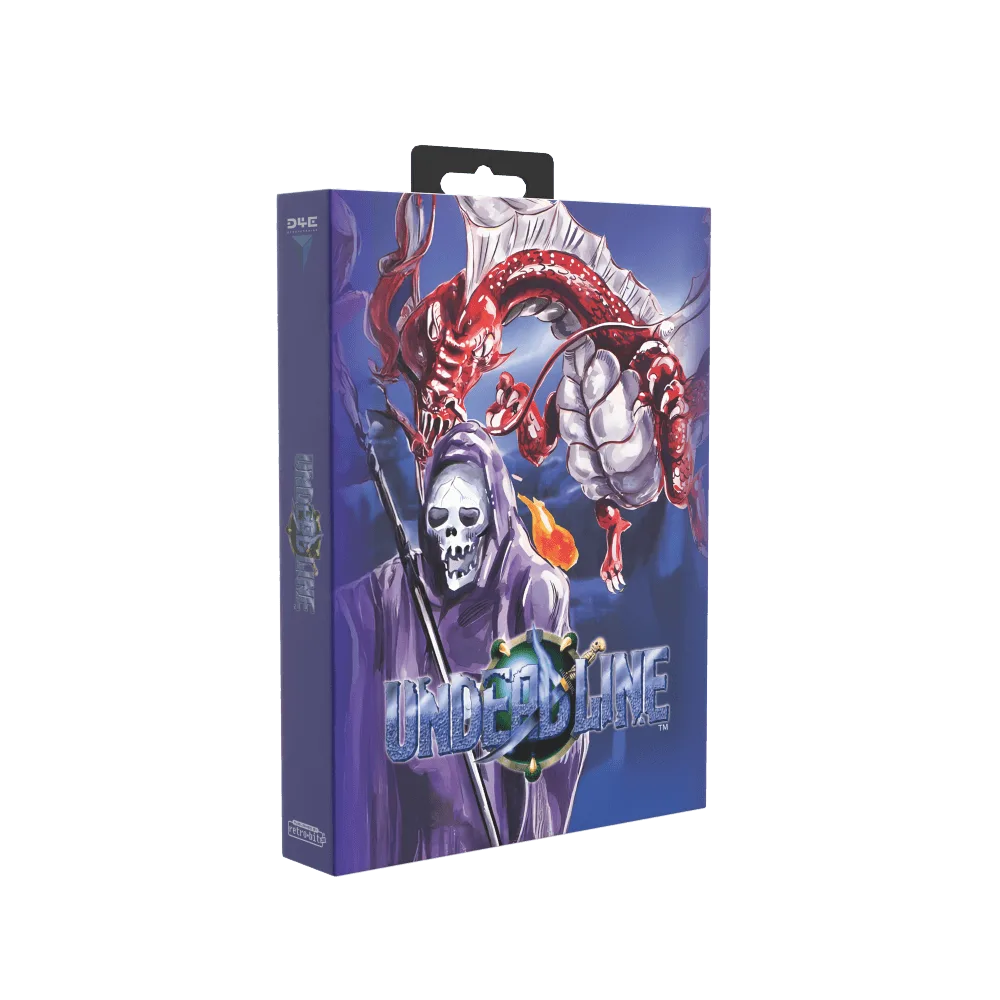
Undeadline Collection Edition For Mega Drive
Remember to update your arcade stick's firmware to the latest version via the 8BitDo support page. Firmware updates can fix connectivity issues and add new features, ensuring the best performance.
- Tip: Use Steam's Big Picture mode to easily configure your arcade stick for any game.
- Tip: For fighting games, consider setting the joystick to 'D-Pad' mode for better directional input.
Troubleshooting Common Connection Issues
Even with the best setup, you might run into occasional connection problems. Here are some common issues and how to fix them. If your arcade stick isn't connecting via Bluetooth, make sure it's not already paired to another device. Turn off Bluetooth on other devices or delete the arcade stick from their paired list. Also, ensure the stick is in the correct mode (e.g., Bluetooth mode, not 2.4G).
If the 2.4G connection is unstable, try moving the receiver to a different USB port, preferably a USB 2.0 port on the back of your PC. Avoid placing the receiver near metal objects or other wireless devices that could cause interference. If you're using a USB hub, connect the receiver directly to the PC instead.
Battery issues can also cause disconnections. If your arcade stick's battery is low, it might not maintain a stable connection. Charge it fully before long gaming sessions. If you're using the wired mode, ensure the cable is securely plugged in and not damaged.
- Tip: Check the LED indicators: a solid light usually means connected, while flashing means pairing mode.
- Tip: Reset the arcade stick by pressing the reset button (often a small pinhole) with a paperclip if all else fails.
Enhancing Your Retro Gaming Experience
Now that your 8BitDo arcade stick is set up, it's time to enjoy your favorite games. To make the most of your retro gaming setup, consider pairing your arcade stick with other quality accessories. For Dreamcast fans, the VMUPro Handheld & Visual Memory Card for Dreamcast (Frost White) is a fantastic addition, allowing you to save your progress and even play mini-games on the go.
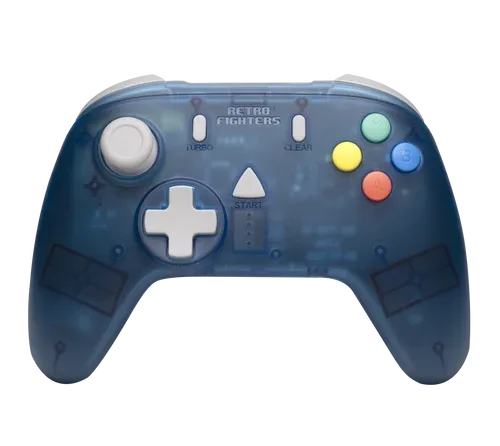
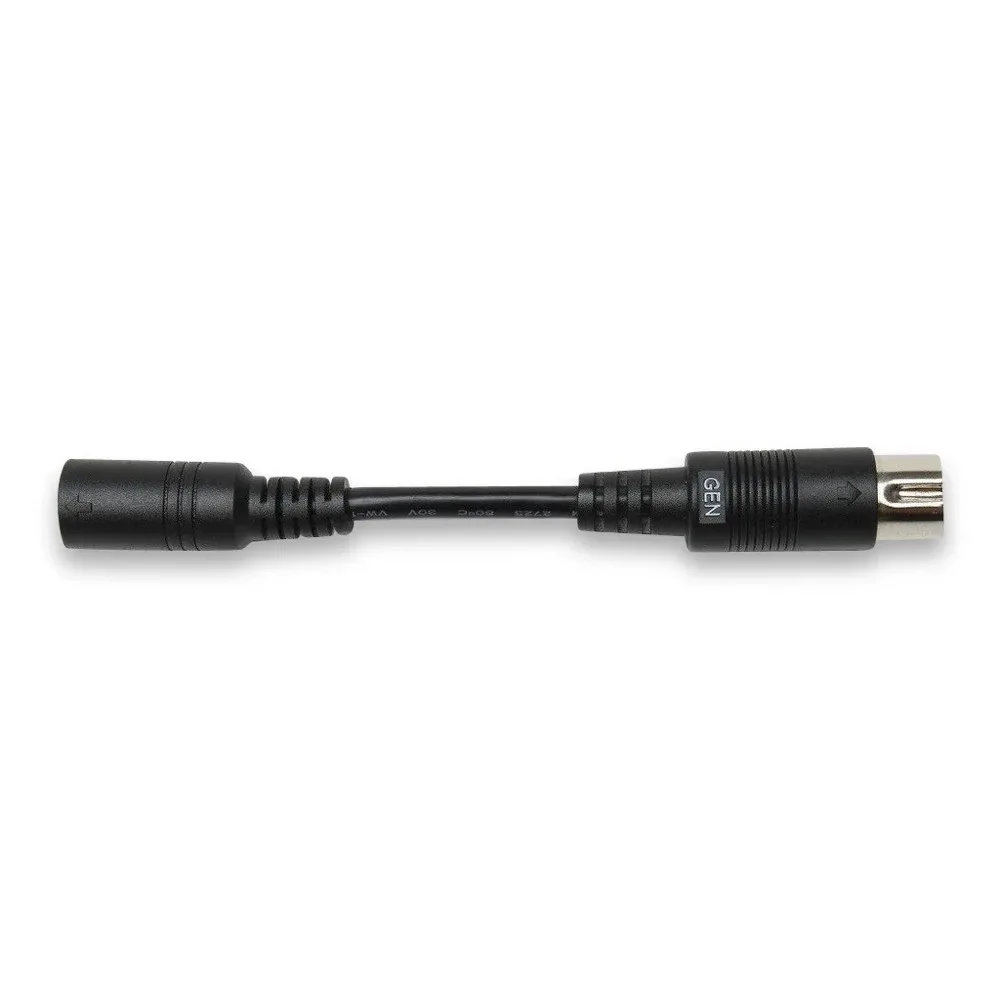
If you're looking for a more authentic console experience, the StrikerDC Wireless Next-Gen Sega Dreamcast Controller (Blue) offers wireless freedom with a classic feel. And for those who love the Genesis, the HD Retrovision Model 1 MD/Genesis A/V Adapter for Model 2 MK/Genesis Cable ensures crisp video output on modern TVs. These accessories complement your arcade stick and elevate your gaming sessions.
Remember, the right gear makes a difference. With your 8BitDo arcade stick properly configured, you're ready to tackle any retro game with precision and style.
- Tip: Use a CRT filter or scanline overlay on emulators to get that authentic retro look.
- Tip: Organize your game library by system for quick access.
Setting up your 8BitDo arcade stick via Bluetooth or 2.4G is a straightforward process that opens up a world of retro gaming possibilities. Whether you're playing on PC, Switch, or other consoles, following the steps in this guide ensures a seamless connection and optimal performance. Don't forget to explore compatible accessories to enhance your setup further. Happy gaming!