Quick Answer
To use the Hunter 360 Wireless Controller, plug the 2.4GHz receiver into your Xbox 360 or PC, then press the sync buttons on the receiver and controller until the LED stops blinking. For PC, the controller works as a standard Xbox 360 controller with no extra drivers on Windows 10 and later.
Why the Hunter 360 is a Solid Choice for Xbox 360 and PC
The Hunter 360 Wireless Controller is designed to be a drop-in replacement for the classic Xbox 360 controller. It uses 2.4GHz wireless technology, which means you get a dedicated connection without Bluetooth pairing menus. This makes setup straightforward on both Xbox 360 and PC.
One thing to keep in mind: the controller is specifically compatible with the original Xbox 360 and PC. It will not work with Xbox One or Xbox Series consoles, so if you plan to use it across multiple systems, you'll need a different controller for those platforms.
What You Need to Get Started
Before you begin, make sure you have the Hunter 360 controller, its 2.4GHz wireless receiver, and two AA batteries (or a rechargeable battery pack). The receiver is required for both Xbox 360 and PC use—it acts as the bridge between the controller and your system.
If you're using the controller on PC, check that your computer has a free USB port. The receiver is plug-and-play on Windows 10 and later, so no additional software is needed.
How to Set Up the Hunter 360 Wireless Controller
- Insert batteries: Open the battery compartment on the back of the controller and insert two AA batteries, matching the polarity indicators. Then press and hold the Xbox Guide button until the LED ring lights up. Check that the batteries are fresh; low power can cause intermittent disconnects.
- Connect the receiver: Plug the 2.4GHz wireless receiver into a USB port on your Xbox 360 or PC. On PC, wait for the driver installation to finish (Windows 10 and later will do this automatically). Use a USB port directly on the console/PC, not a hub, to avoid power or signal issues.
- Sync the controller: Press the sync button on the receiver (usually on the side or top) and then press the sync button on the top of the controller. The LED on the controller will blink while searching and stop blinking once paired. Keep the controller within a few feet of the receiver during sync; after pairing, range extends to about 30 feet.
- Test the connection: Press the Guide button to turn on the controller. On Xbox 360, the player LED will light up. On PC, open the Game Controllers settings (run 'joy.cpl') to verify the controller is recognized and test the sticks and buttons. If the controller isn't recognized on PC, try a different USB port or re-sync the controller.
- Adjust for your game: For PC gaming, you may want to set the controller as the default input device in your game's settings. The Hunter 360 appears as an Xbox 360 controller, so most games will automatically show Xbox button prompts. If a game doesn't respond, check that the controller is selected in the game's controller options.
Hunter 360 Wireless Controller at a Glance
-
Hunter 360 Wireless Controller for Xbox 360 and PC - Transparent Green: The Hunter 360 features Hall Effect analog sticks and a 1000Hz polling rate for low-latency response. Hall Effect sticks resist wear and the high polling rate means your inputs register faster, which is especially useful for competitive games on PC.
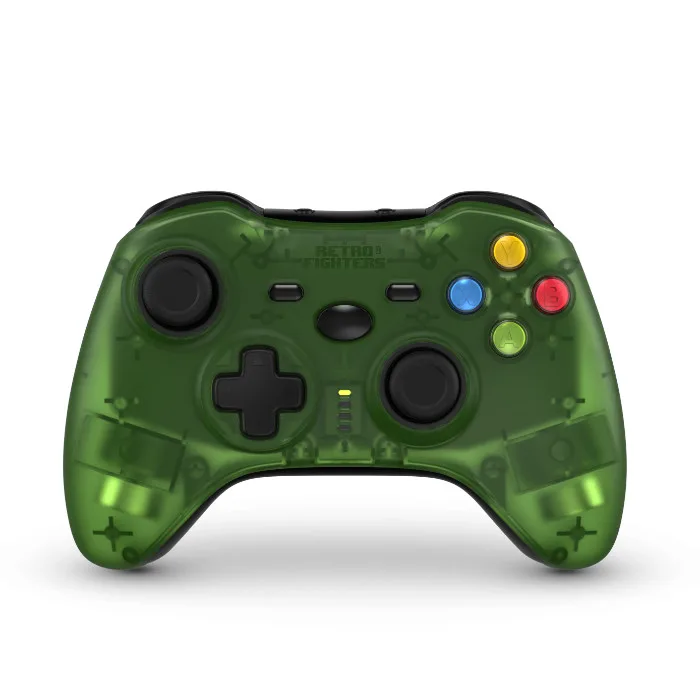
Hunter 360 Wireless Controller for Xbox 360 and PC - Transparent Green