Quick Answer
Plug the Wyze Gaming Headset USB Dongle into a USB port, power on your headset, and let them pair automatically. If they don't connect, follow the manual pairing steps below.
Why a USB Dongle Beats Bluetooth for Gaming
A USB dongle provides a dedicated, stable connection that reduces audio lag and interference compared to standard Bluetooth. This matters in fast-paced games where split-second sound cues can decide the match. The Wyze Gaming Headset USB Dongle is compact and portable, so you can easily move it between setups—just plug it in and go.
One trade-off: the dongle occupies a USB port, so on laptops with limited ports you may need a hub or to unplug another device. Also, the dongle is designed specifically for Wyze gaming headsets, so it won't work with other brands—check compatibility before buying.
Step-by-Step Setup and Pairing
- Connect the Dongle: Insert the Wyze Gaming Headset USB Dongle into an available USB port on your PC, console, or laptop. Wait for the system to recognize it—usually a notification or a light on the dongle indicates it's ready. If nothing happens, try a different USB port; some ports may not provide enough power or data.
- Power On Your Headset: Turn on your Wyze gaming headset by holding the power button until you see an LED indicator. The headset should automatically search for the dongle and connect within a few seconds. Make sure the headset is fully charged; a low battery can prevent pairing.
- Pair Manually If Needed: If the headset doesn't connect automatically, put it in pairing mode by pressing and holding the pairing button (often the power button) for 5-10 seconds until the LED blinks rapidly. Then press the pairing button on the dongle if it has one, or reinsert the dongle to trigger a new pairing attempt. Move the headset and dongle close together during pairing; distance can cause failures.
- Set as Default Audio Device: On your computer, go to sound settings and select the Wyze headset as both the output and input device. This ensures game audio and chat both route through the headset. If you don't hear sound, check that the correct device is selected and that the volume isn't muted.
- Test and Adjust: Play a game or audio clip to confirm sound quality and microphone clarity. Use the headset's volume controls to adjust to a comfortable level. If the microphone isn't working, check the privacy settings on your device to ensure the headset has access.
Product Facts
-
Wyze Gaming Headset USB Dongle: The Wyze Gaming Headset USB Dongle is designed for use with Wyze gaming headsets and facilitates a stable wireless or wired connection for audio transmission. This ensures reliable audio with minimal dropouts, so you can focus on the game without worrying about connection issues.
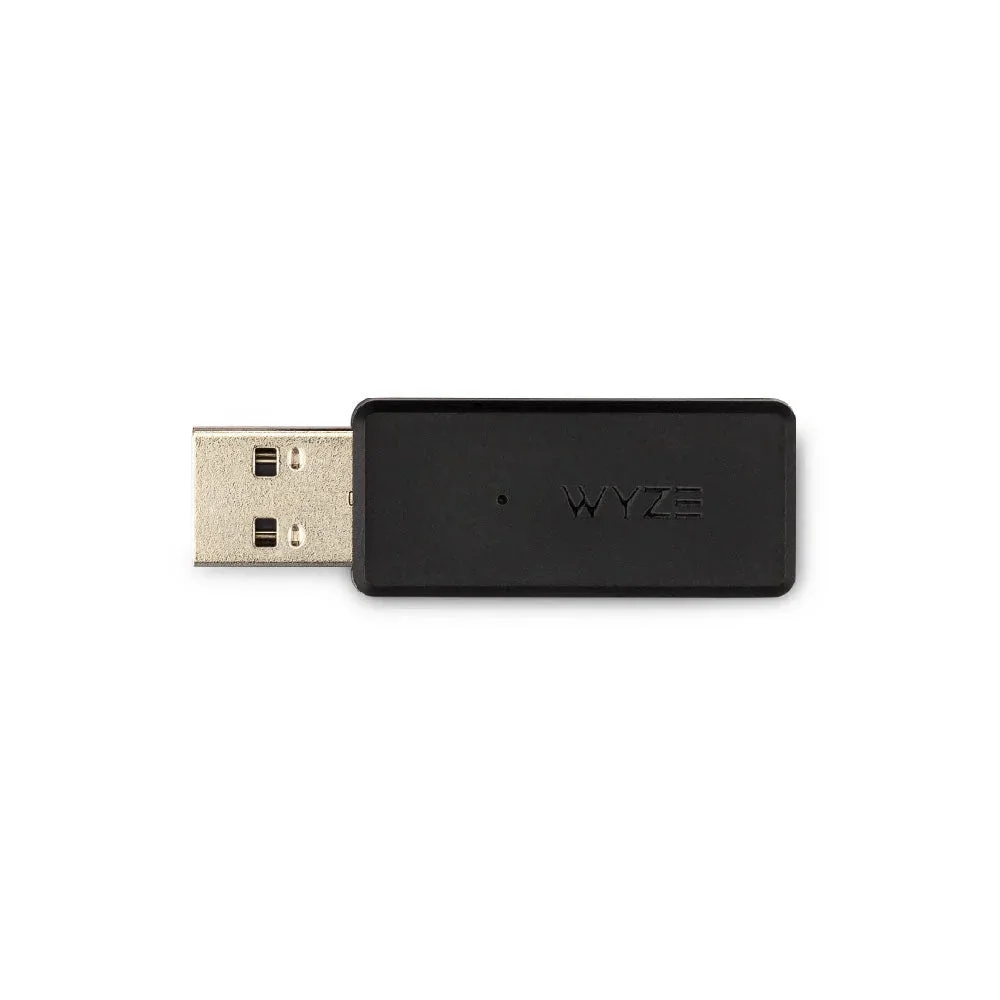
Wyze Gaming Headset USB Dongle