Quick answer
Start by checking the cable connection, port power, and display input source. If those don't help, update your graphics driver or try a different USB-C port — especially one that supports DisplayPort Alt Mode.
Why a USB-C hub might not detect your monitor
Most USB-C hubs rely on DisplayPort Alt Mode to send video over the USB-C connection. If your laptop or tablet doesn't support Alt Mode on that specific port, the hub won't output video even if the hub itself is powered and recognized.
Some older or budget laptops limit video output to certain ports — often the one with a battery icon or a DisplayPort logo. Using a regular USB-C port for charging or data won't drive a monitor.
Cable quality also matters. A USB-C cable that only handles USB 2.0 speeds may not carry a 4K HDMI signal. If your hub came with a short cable, try that one first, as it's likely rated for the required bandwidth.
Diagnosis steps: USB-C hub not detected
- Symptom: Monitor shows no signal: Check the monitor's input source — cycle through HDMI 1, HDMI 2, or DisplayPort using the monitor's on-screen menu. Also verify the HDMI cable is fully seated on both ends. If the monitor shows a menu or 'No Signal' disappears briefly, the source was wrong.
- Likely cause: Wrong USB-C port: Try every USB-C port on your laptop. Only ports with a DisplayPort, SS (SuperSpeed), or battery icon support video output. If none work, your device may not support Alt Mode at all. If one port works, mark that port for future monitor use.
- Corrective action: Update or reinstall graphics driver: On Windows, open Device Manager, expand Display adapters, right-click your GPU, and select Update driver. On macOS, go to System Settings > General > Software Update. A stale driver can prevent the hub from being recognized. If updating doesn't help, try a clean driver reinstall.
- Corrective action: Check power delivery: If your hub supports PD (Power Delivery), plug the hub's USB-C power cable into a wall charger — not just the laptop. Some hubs need external power to output 4K video, especially when multiple ports are used. If the monitor now works, the hub was underpowered.
- Point to stop or choose another option: If you've tried all ports, updated drivers, and provided external power with no success, the hub or cable may be faulty. Test with a different USB-C hub or a direct HDMI cable from your laptop if available. If a direct connection works, replace the hub.
Product that can help
-
4-in-1 Multi USB Port Hub - USB C to HDMI Adapter 4K @ 30Hz, USB Type C Hub, 2x USB A 3.0 PD 3.0 - Multiport USB C Dongle for Mac OS, Windows, Macbook: Multiport USB C Dongle for Mac OS & Windows with USB C to HDMI Adapter 4K, USB Type C Hub, 2x USB A 3.0 PD 3.0 If your current hub lacks PD 3.0, a hub with power delivery can keep your laptop charged while driving a 4K monitor — avoiding the 'no signal' issue caused by insufficient power.
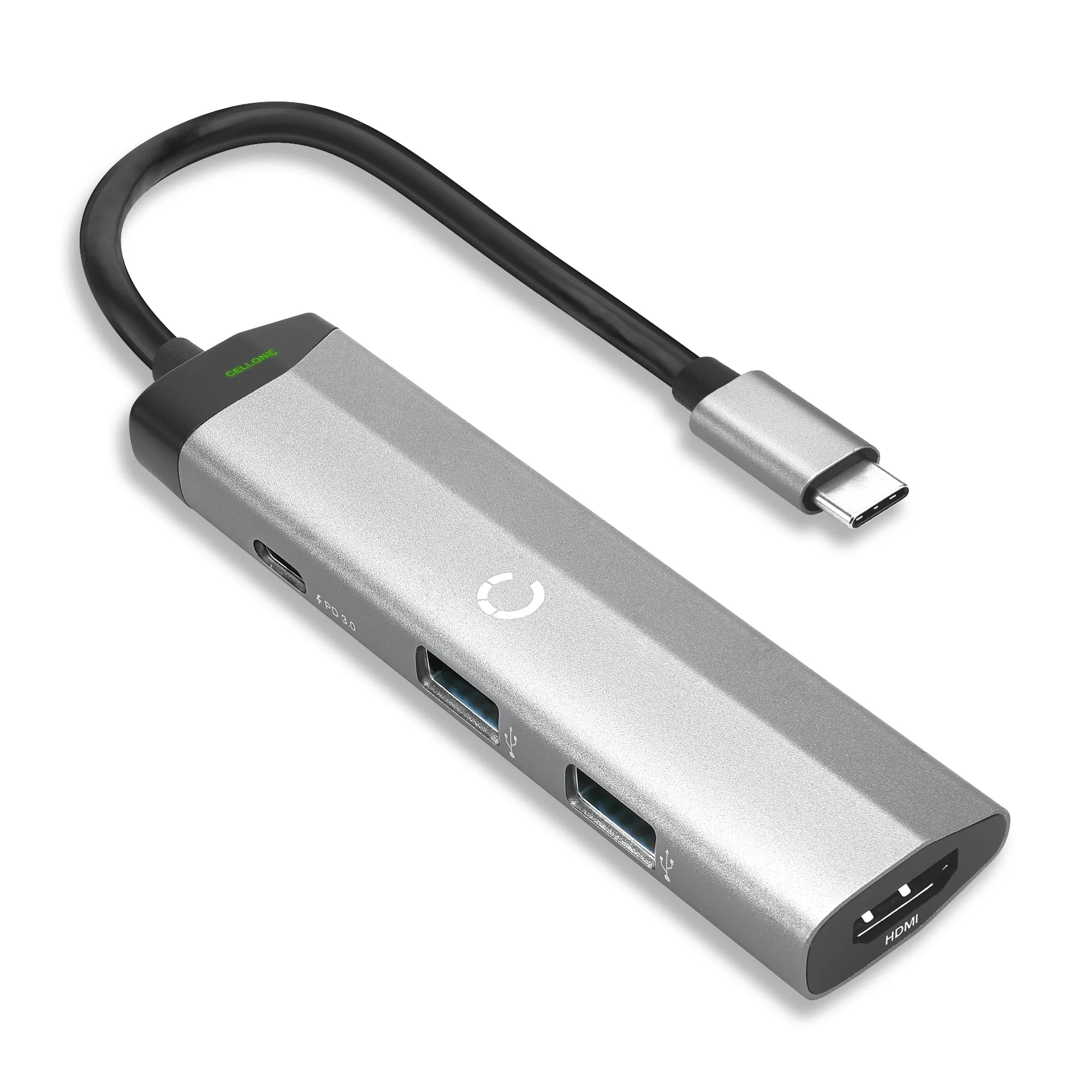
4-in-1 Multi USB Port Hub - USB C to HDMI Adapter 4K @ 30Hz, USB Type C Hub, 2x USB A 3.0 PD 3.0 - Multiport USB C Dongle for Mac OS, Windows, Macbook