Quick Answer
To set up a landing gear and lights panel for the Fenix A320 in MSFS, connect the panel via USB, install any required drivers, and configure the buttons and switches in the simulator's control settings.
Why a Dedicated Panel Beats Mouse Clicks
Using a physical landing gear and lights panel in the Fenix A320 adds a level of immersion and efficiency that mouse clicks can't match. With a dedicated panel, you can quickly toggle gear, taxi lights, landing lights, and more without hunting through the virtual cockpit. This is especially useful during critical phases like takeoff and landing, where your attention should stay outside the window.
The panel also helps prevent common mistakes like forgetting to lower the gear or turning off landing lights after takeoff, thanks to tactile feedback and clear indicator lights.
Compatibility and Limitations
Before you start, ensure your panel is compatible with MSFS and the Fenix A320. Many panels, like the 1/1 Scale Backlit Landing Gear and Lights Control Panel, are designed for MSFS and work with popular add-ons like the Fenix A320. However, some features may not be fully supported depending on the simulator version or add-on updates.
If you encounter any issues, check for firmware updates or consult the manufacturer's documentation. Sometimes, you may need to map buttons manually if the panel isn't automatically recognized.
Step-by-Step Setup Guide
- Connect the Panel: Plug the panel into a USB port on your PC. Ensure the connection is secure and the panel is powered on. Check that the panel is recognized by Windows (look for a notification sound or check Device Manager).
- Install Drivers (if needed): Some panels require specific drivers. Visit the manufacturer's website to download and install any necessary drivers, then restart your PC. If the panel isn't detected, reinstall the drivers or try a different USB port.
- Configure in MSFS: Open MSFS and go to Options > Controls. Search for the Fenix A320 profile or select it from the dropdown. Scroll to the landing gear and lights sections and assign the corresponding buttons and switches on your panel. Test each switch to ensure it triggers the correct action in the simulator.
- Test the Panel: Start a flight with the Fenix A320 and test the gear lever, lights switches, and indicator lights. Verify that the panel's LEDs sync with the simulator state. If the indicator lights don't match, check the panel's configuration software or the simulator's event mapping.
- Troubleshoot Common Issues: If a switch doesn't work, verify it's properly mapped in MSFS. If the panel isn't recognized, check for driver updates or USB power issues. For persistent problems, consult the manufacturer's support page. Keep your panel's firmware and MSFS up to date to avoid compatibility glitches.
Panel Features and Benefits
-
1/1 Scale Backlit Landing Gear and Lights Control Panel for MSFS2020, Windows PC - Compatible with FENIX320: Authentic 1:1 Scale Design: Faithfully recreates the landing gear and lights control panel at true 1:1 scale, delivering precise layout and tactile feel for maximum realism. The exact replica layout ensures muscle memory from the real aircraft transfers to your simulator, reducing errors during high-stress phases.
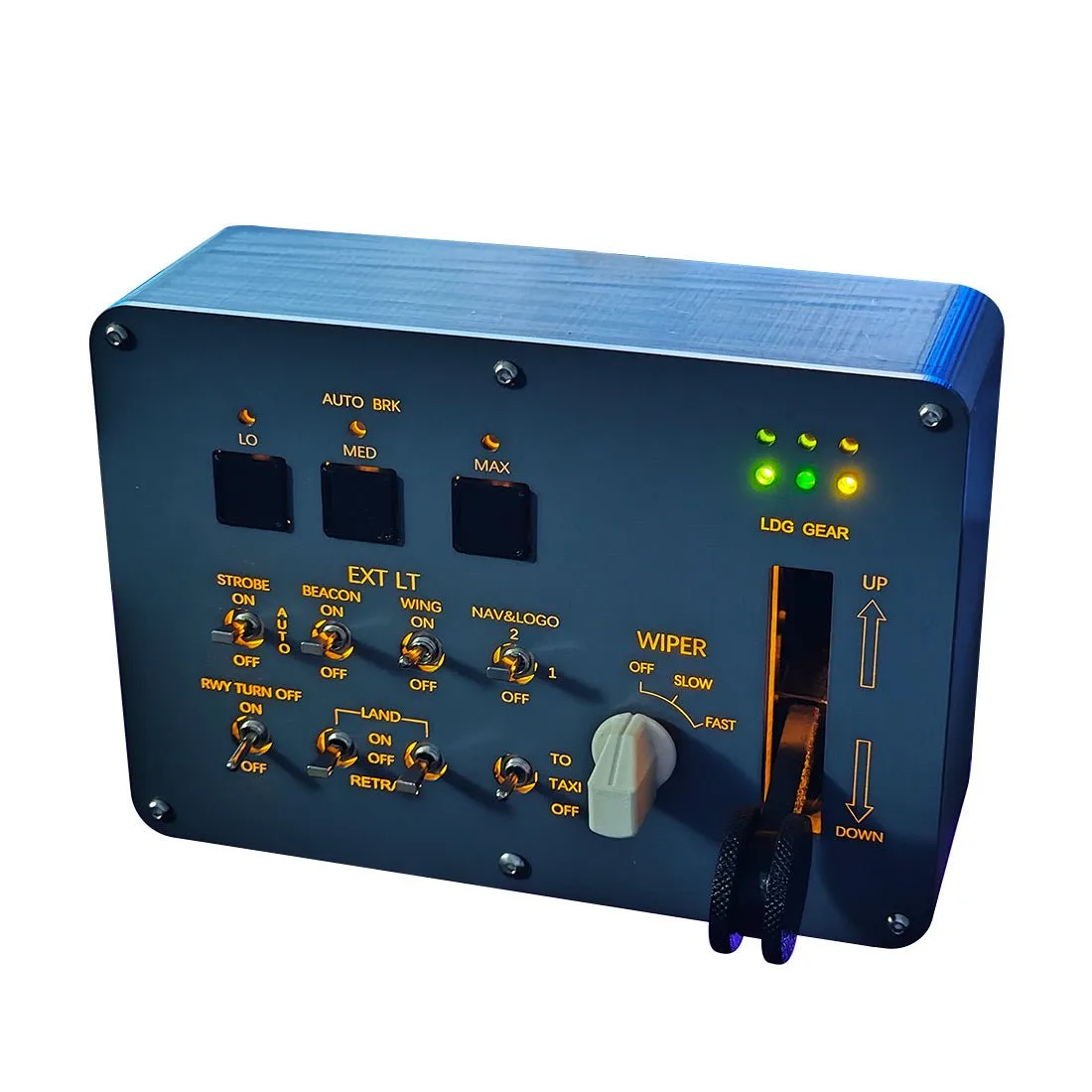
1/1 Scale Backlit Landing Gear and Lights Control Panel for MSFS2020, Windows PC - Compatible with FENIX320
-
1/1 Scale Backlit Landing Gear and Lights Control Panel for MSFS2020, Windows PC - Compatible with FENIX320: Plug-and-Play Simplicity: Enjoy seamless integration with your simulator thanks to one-touch configuration, with no manual setup required. You can spend more time flying and less time configuring, making it ideal for beginners and experienced simmers alike.