Quick answer
To build a dual monitor setup with the CORSAIR XENEON EDGE, mount the 14.5" touchscreen where it won't block your main display, connect it via the included cables, and configure it in Windows for touch and orientation.
Why the XENEON EDGE works as a secondary monitor
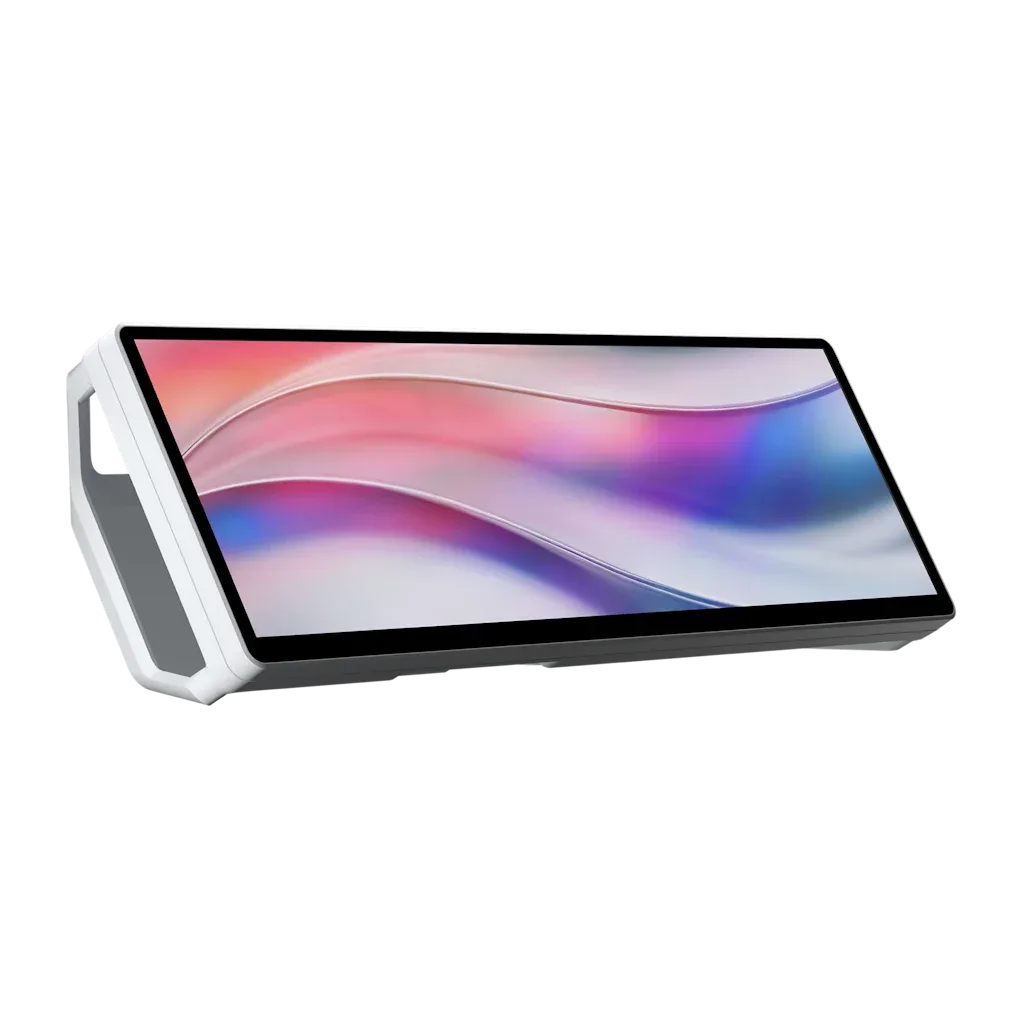
The CORSAIR XENEON EDGE 14.5" LCD touchscreen is designed as a companion display for sim racing and productivity. Its 2560x720 resolution gives you a wide, low-profile panel that fits naturally below or beside your main monitor without eating up desk space.
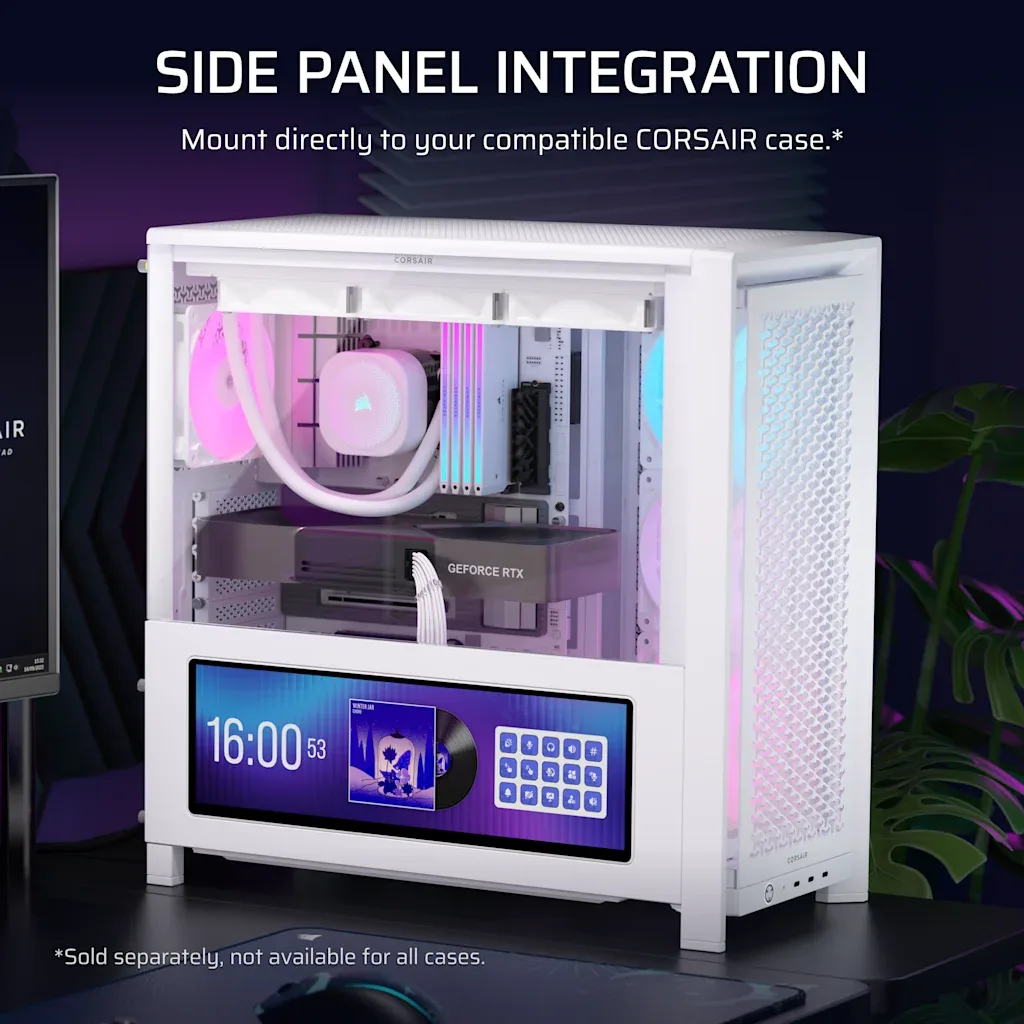
The magnetic mounting system makes it easy to reposition the screen, and iCUE cockpit integration lets you manage the display alongside your other CORSAIR gear. For a dual monitor setup, the key is treating it as a true secondary panel, not just a decorative gadget.
Step-by-Step XENEON EDGE Dual Monitor Setup
- Check your desk and mounting surface: Confirm the XENEON EDGE magnetic mount can attach securely to your monitor's back or a metal stand. If your monitor lacks a metal back, use the included adhesive plate or a VESA adapter. Common mistake: skipping the surface check and having the touchscreen fall during setup. Place the touchscreen where it won't block your main monitor's vents or cables.
- Plan the cable path before connecting: Connect the USB and video cables (the XENEON EDGE uses a single USB-C connection for both data and power). Route them behind your desk or along a cable tray to keep the setup clean. Common mistake: forgetting to leave enough slack for tilting the screen. Route cables before mounting to avoid rework.
- Attach the magnetic mount: Use the magnetic mounting system to position the XENEON EDGE where you need it. Make sure the mount is firmly attached to a stable surface or VESA-compatible arm, and test the angle before finalizing. Verify the mount holds securely before releasing the screen.
- Connect power and video: Plug in the power adapter and connect the display cable to your PC. If your GPU lacks a free port, use the included cable or a supported adapter. Confirm the touchscreen is recognized in your operating system's display settings. Check Windows or macOS display settings to confirm the XENEON EDGE is detected as a second display.
- Configure iCUE cockpit integration: Open iCUE and assign the XENEON EDGE as a secondary display. Adjust orientation, resolution (2560x720), and touch calibration so touches align with the visible area. Test touch alignment with the built-in calibration tool before finalizing placement.
- Position and mount the touchscreen: Use the magnetic mounting system to attach the XENEON EDGE to your sim rig or desk. Place it within comfortable reach so touch interactions feel natural and the screen doesn't block your main monitor. Angle the screen toward your seated position to reduce glare and improve touch accuracy.
Hardware you will use
-
CORSAIR XENEON EDGE 14.5" LCD Touchscreen - White: 2560x720 vivid display with magnetic mounting and iCUE cockpit integration. The wide resolution gives you a long, readable strip for dashboards or chat, while the magnetic mount lets you reposition the screen without tools.
CORSAIR XENEON EDGE 14.5" LCD Touchscreen - White